

Remove objects from pictures with one sentence
Drag the slider to compare the photo before and after editing.
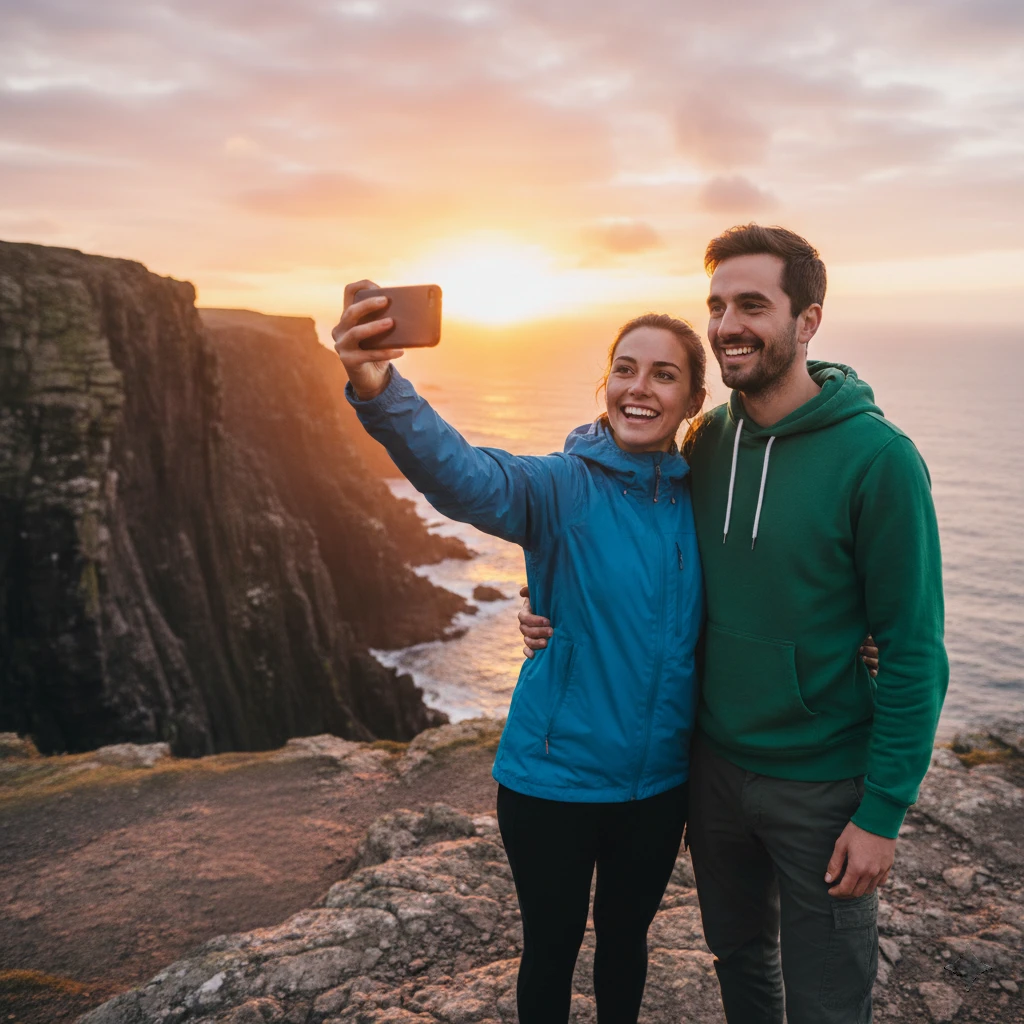
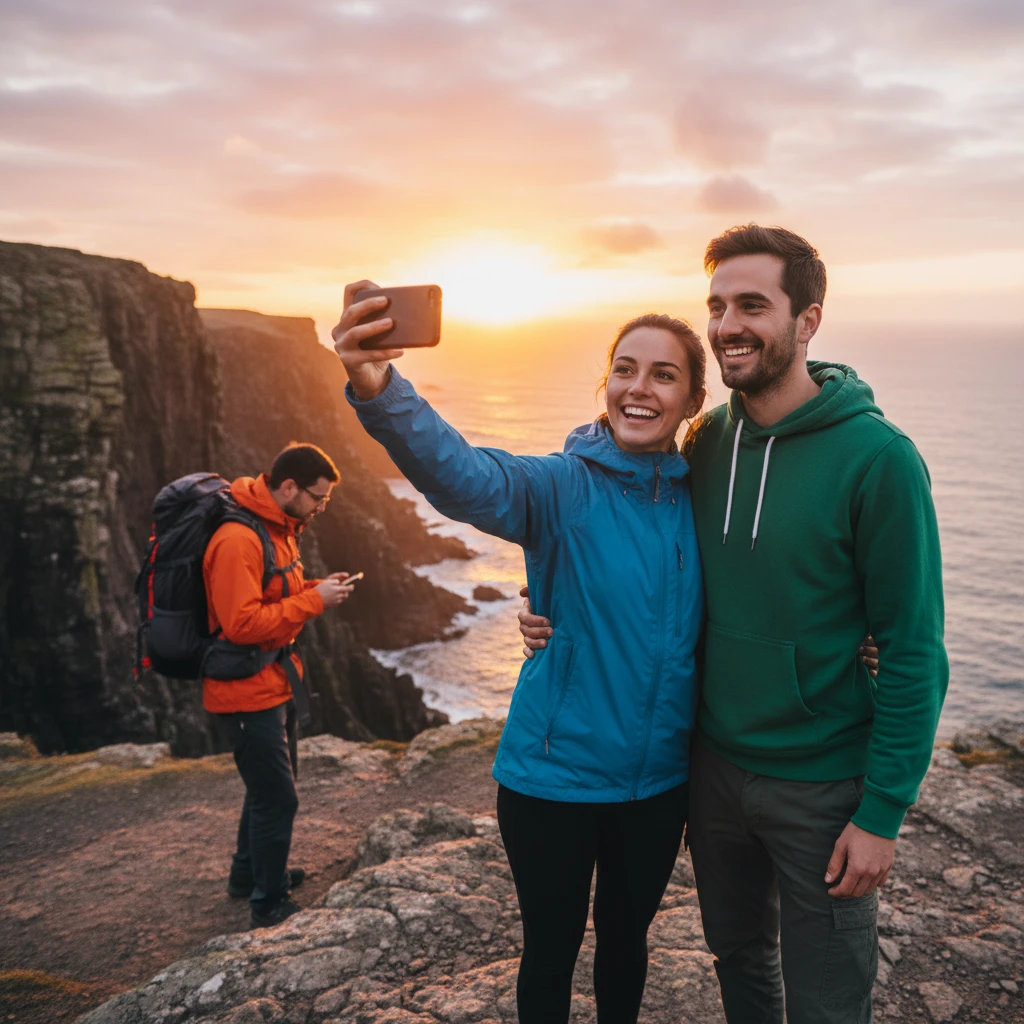
People in the shot
A tourist in the background? Just describe them.
Someone stepped into your shot just as you pressed the shutter. Describe who should disappear and AI removes them, filling in the background behind them.
- Remove a person from a photo with one sentence
- Reconstruct the background to match its surroundings
 Before
Unwanted distractions
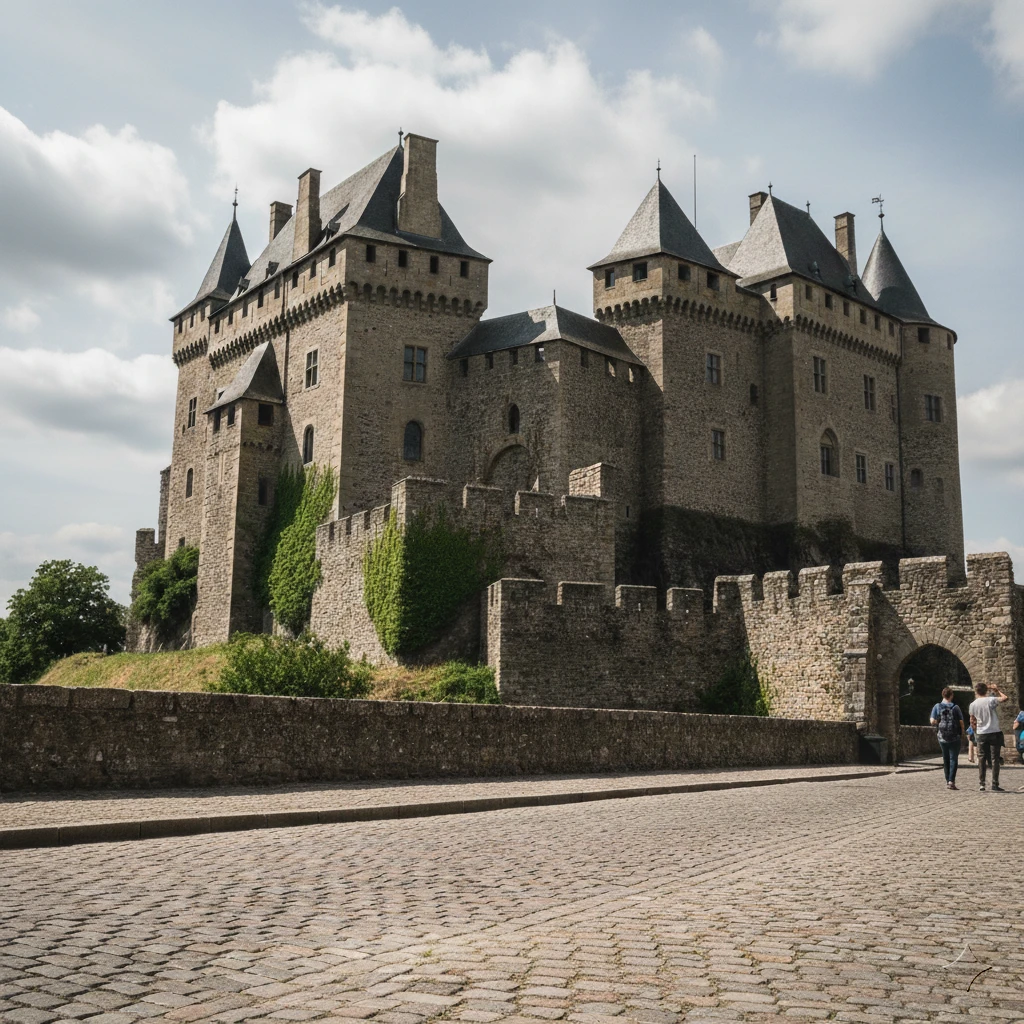
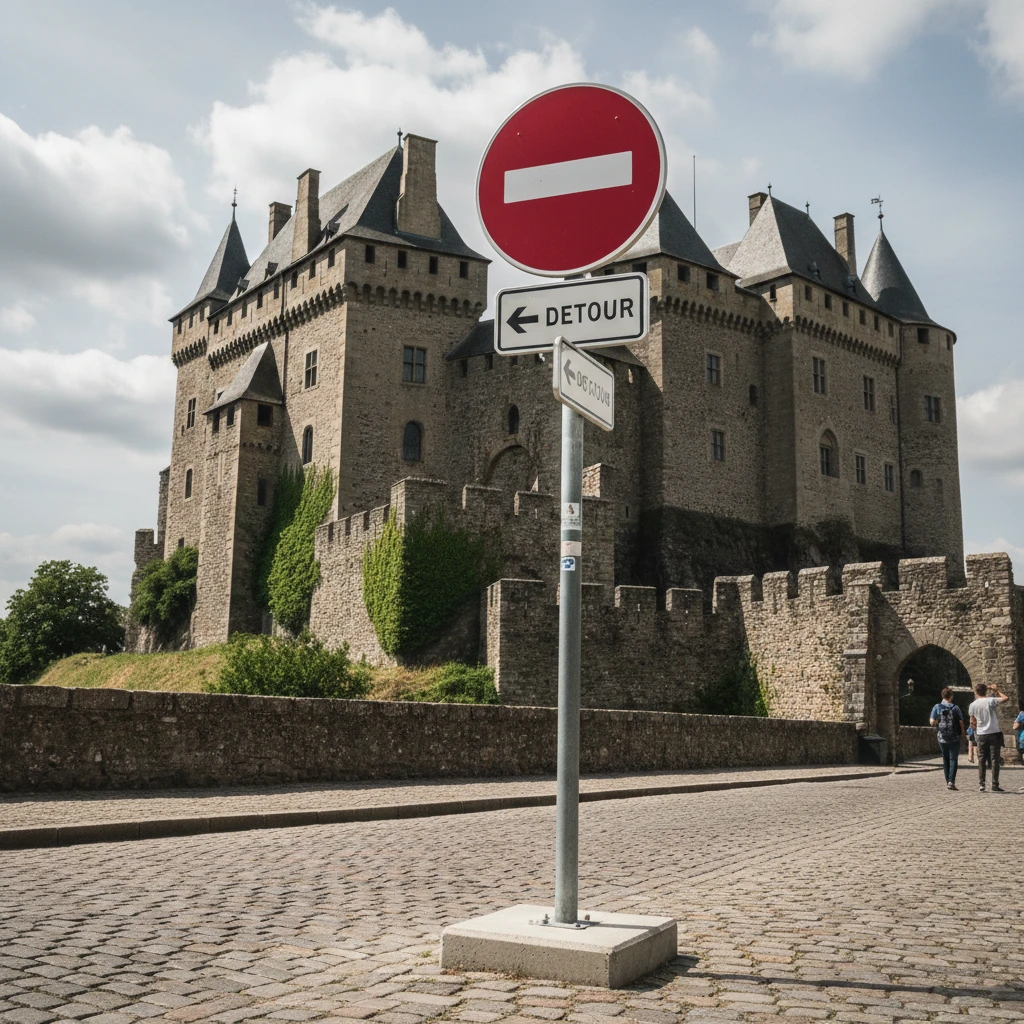
Remove the road sign in front of a landmark
Signs, wires and parked cars can spoil even a well-composed photo. AI removes them while preserving the architecture and lighting of the original.
Find more examples and prompting tips in our guide to removing objects from photos.
- A clear view of landmarks and landscapes
- Keep the photo’s original lighting and colors
 Before
Objects in the foreground
Remove objects right at the front of the shot
A trash can in the middle of the street? AI removes it and reconstructs the paving beneath it with the right perspective and texture.
- Reconstruct textures and perspective
- For street scenes, interiors and product photos

 Before
How to remove objects from a photo in three steps
Upload your photo
Drag your image into the form above – JPG, PNG and WebP up to 10 MB.
Describe what should disappear
A few words are enough: the tourist on the left, the trash can in the foreground, the car by the house. After you sign up for free, the edit starts in the app.
Download the clean photo
AI removes the object and reconstructs the background. Download your finished photo.
When does object removal come in handy?
One distracting detail can spoil an otherwise great photo. Here’s how to remove it.
Vacation photos
A landmark without crowds of tourists and a beach without strangers in the shot.
Real estate and interiors
Remove trash cans, cables and parked cars from property photos.
Product photos
Remove a stand, price tag or stray object so your product stands out.
Portraits
Keep passersby and distracting objects behind you out of your profile picture.
Marketing and social media
A clean photo with no distracting details for posts, banners and presentations.
Family and wedding photos
One unwanted detail won’t spoil a moment you can’t recreate.
Can I remove objects from photos for free?
Try object removal for free with your welcome credit after signing up. For regular use, it’s part of the subscription.
Free
A classic online editor – crop, resize, filters, color adjustment and text. No installation and no payment card. On top of that, you can try AI object removal with your welcome credit after registering.
In the subscription
AI removal of objects and people from photos and high-quality downloads. Available starting from the Basic plan.
View pricingPhoto object removal FAQ
Something missing? Get in touch.
How do I remove objects from a photo?
Upload a photo and describe what should disappear. AI removes the object and fills the space to match its surroundings. See examples and steps in our guide to removing objects from photos.
How do I remove a person from a photo?
Describe who to remove, for example “the man in the red jacket on the left”. The more specific your description, the more precise the result.
Can I remove objects from photos for free?
Sign up without a payment card and try object removal for free with your welcome credit. For regular use, it’s part of the subscription. The classic editor (crop, filters, text) is free.
What is an AI eraser?
An AI eraser removes a selected object from a photo and reconstructs the background behind it. In GuideGlare, just describe the object in words; precise brush selection is available in the app.
Can I remove text or a watermark too?
For captions, text watermarks and burned-in dates, use the photo watermark remover.
What photos can I upload?
JPG, PNG and WebP up to 10 MB.
Do I have to install anything?
No. Object removal runs in your browser, with an interface in your language. In the same editor, you can upscale your photo, remove its background or use the other tools in the AI photo editor.
Discover the whole GuideGlare platform
Beyond object removal, one account gives you an image generator, chat, presentations, copywriting and other GuideGlare tools.
AI Images
Generate images from text, edit photos and retouch with AI.
AI Chat
Conversational AI with a perfect command of your language and a long context.
AI Presentations
Presentations from a brief in minutes, export to PPTX.
AI Copywriting
Sales copy built on 16 proven copywriting frameworks.
AI Audio
Generate voice and music, and transcribe audio to text.
AI Documents
An AI editor for reports, articles and documents.
Social Media
Posts, content calendar and publishing.
AI Translator
Translate text, PDFs, images and audio.