

What the AI photo editor can do
Click an edit to set up the form above, then upload your photo.
Remove background
Separate the main subject from the background, even around hair and fur. Get a PNG with a transparent background.
Select Standalone toolRemove text and watermarks
Remove a text watermark, caption or burned-in date from your own photo and reconstruct the texture beneath it.
Select Standalone toolStep-by-step guides: edit part of a photo · remove objects · change aspect ratio · increase resolution · restore and colorize · change the atmosphere · merge photos
AI photo editing in action
Drag the slider or click an example to compare the photo before and after editing.
Editing with words
Want a different color or detail? Edit your photo with a prompt.
Describe the edit in your own words. You don’t need to master layers or masks – just type an instruction as you would for a designer.
“Change the background to a winter landscape”, “Make the dress blue” or “Put a knitted hat on the squirrel”. For help with your prompt, see our guide to editing part of a photo.
- Edit photos with a plain-language prompt
- No layers or masks to work with

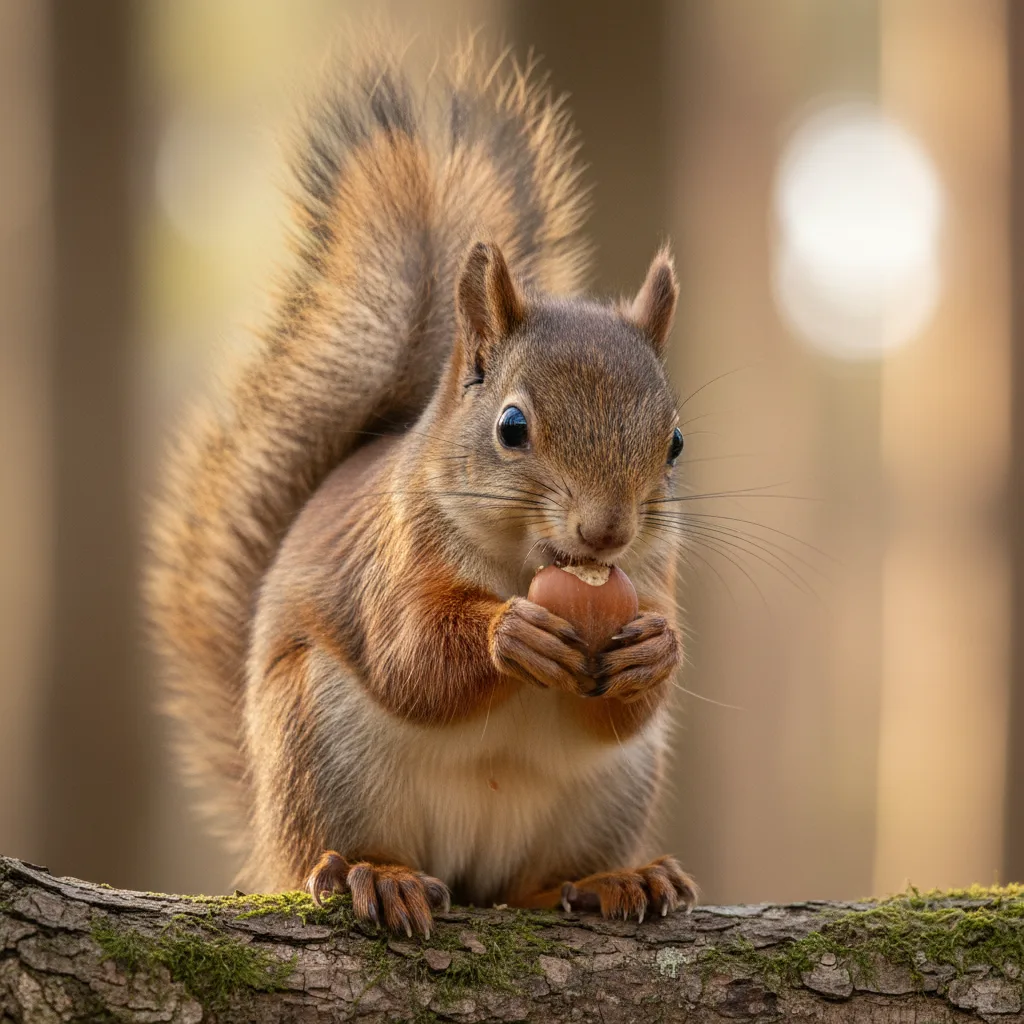 Before
Background removal
A transparent background in one click
Separate the main subject from the background with a click. AI recognizes edges even around hair and fur and creates a PNG with a transparent background.
Preparing photos for your store or catalog? Use the same process to remove the background from a whole set of product photos.
- Cut out subjects, even around hair and fur
- A PNG with a transparent background in one click
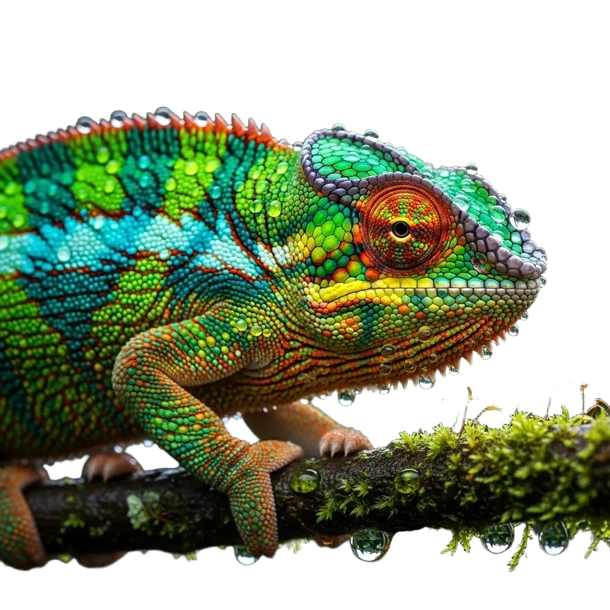
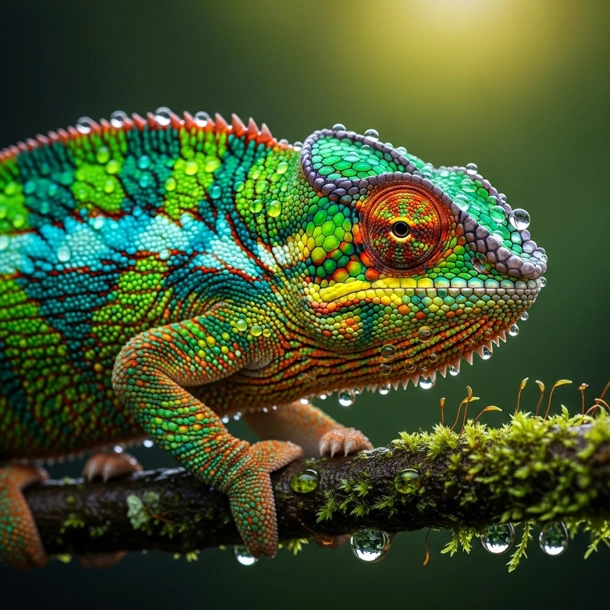 Before
Text and watermarks
Text watermark or date stamp? Give your photo a clean look again.
AI finds text in your photo – a watermark, caption or burned-in date – and removes it. It reconstructs the texture beneath the text based on the surroundings.
To remove a logo or just a selected area, use the brush in the app.
- Remove text watermarks, captions and burned-in dates
- AI reconstructs the texture beneath the text from the surroundings
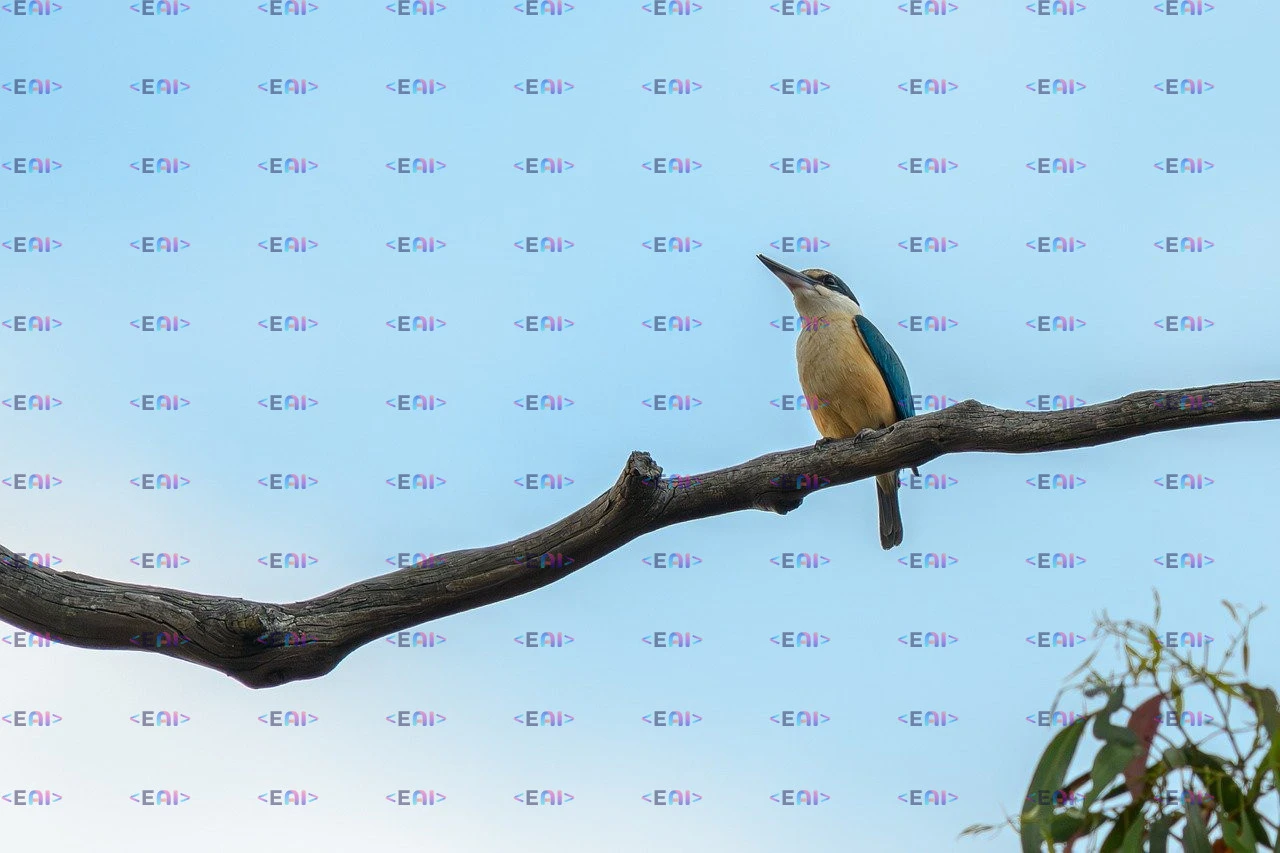
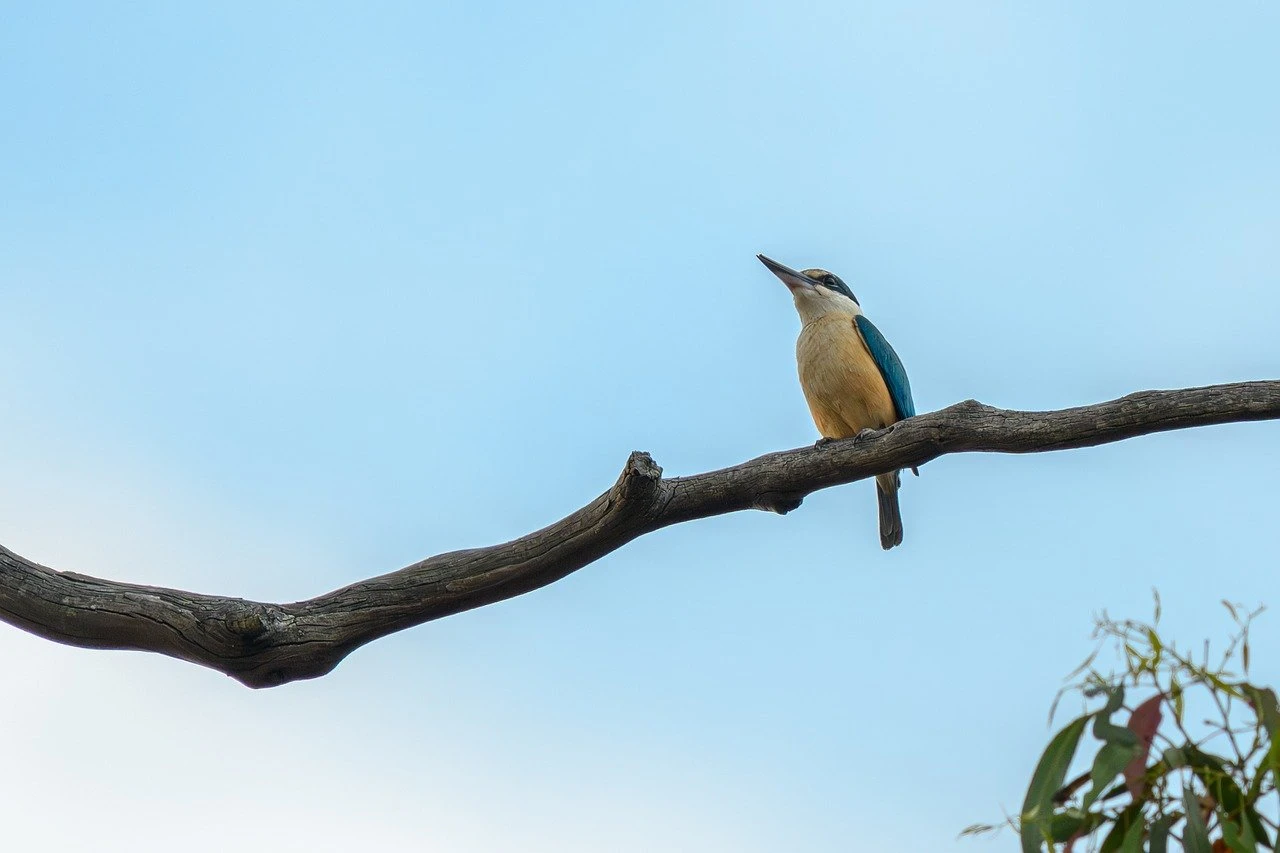
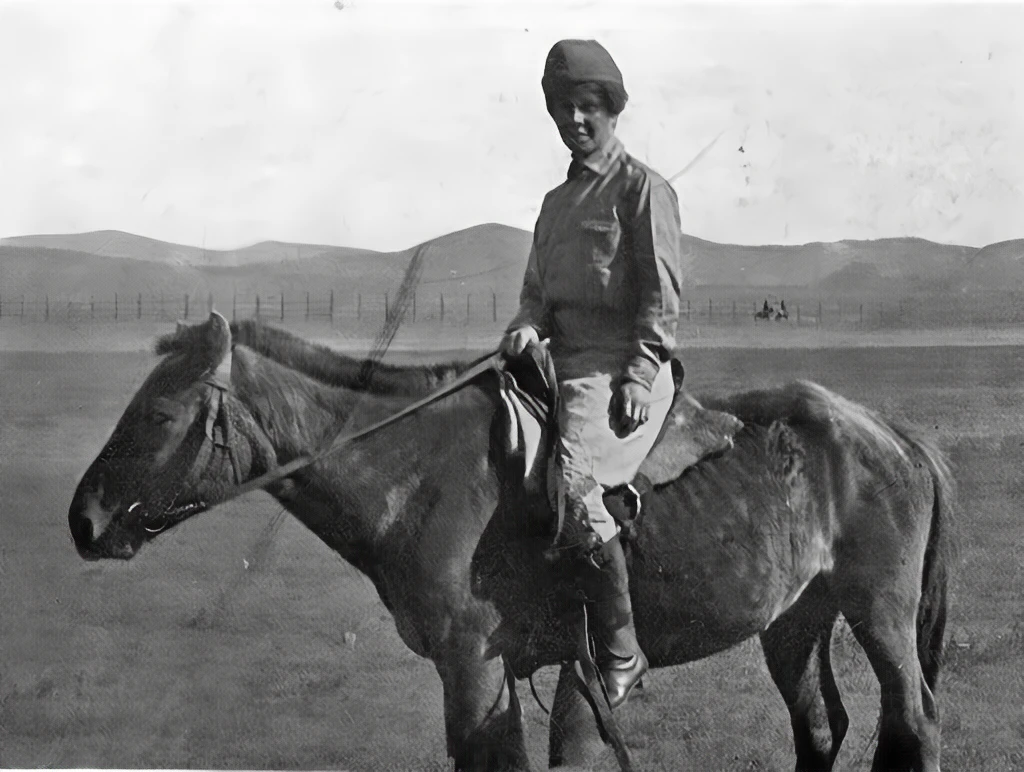
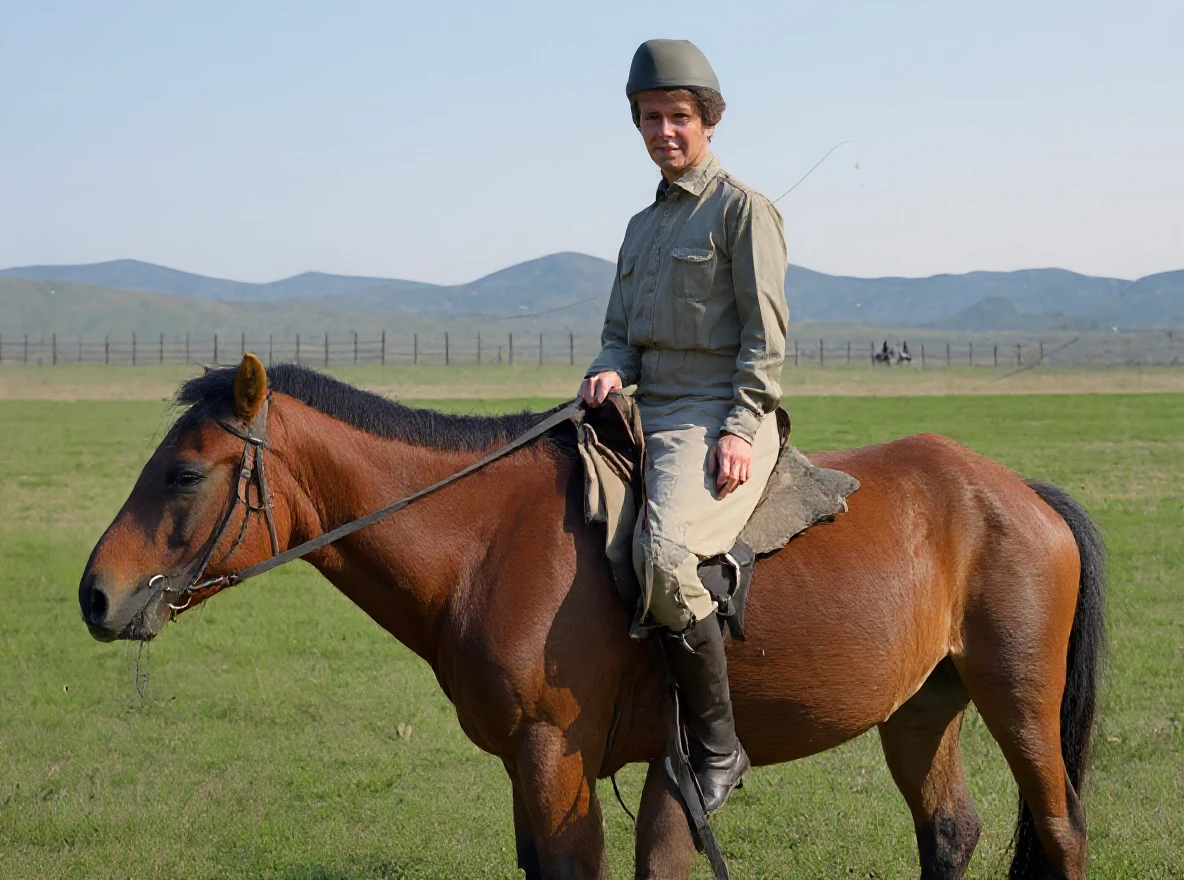
Colorization
Bring black-and-white photos to life with color
AI adds natural colors to black-and-white photos, bringing a picture from the family album to life again.
You can also repair scratches and faded spots in the app. See the steps in our guide to photo restoration and colorization.
- Add natural colors to black-and-white photos
- For family archives and historical photos
How to edit a photo with AI
Four steps, no installation.
Upload a photo
Drag a photo into the form above. JPG, PNG and WebP up to 10 MB.
Choose an edit
Choose a ready-to-use edit or describe the change in your own words.
Sign up for free
No card required. Your photo and prompt carry over to the app, and your welcome credit covers the edit.
Download the result
Your edit is saved as a new variant, keeping the original photo.
Available for free
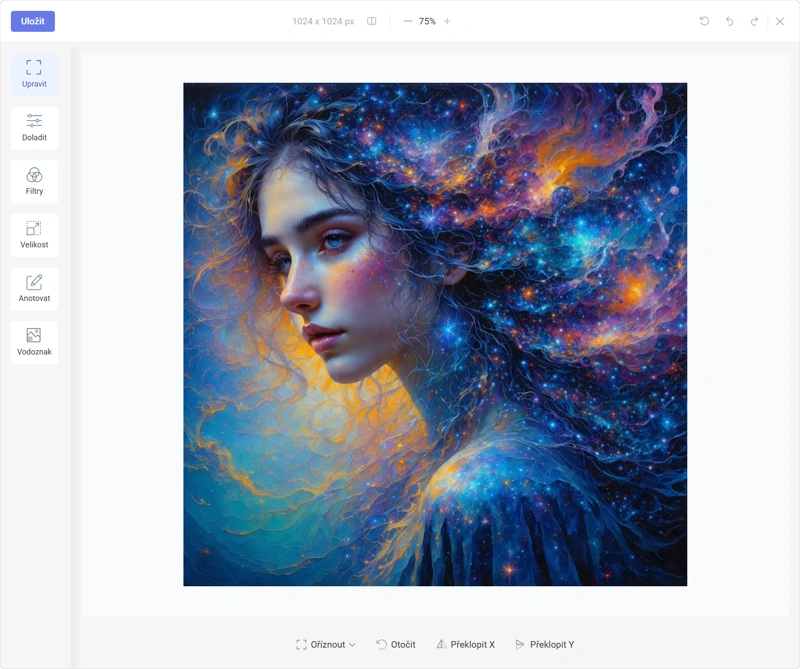
Classic online photo editor: quick finishing touches
Crop a photo, adjust colors or add a caption in the app’s classic editor – quickly and for free.
Color correction
Brightness, contrast, hue, saturation and warmth.
Filters and effects
Black and white, sepia, vintage and more effects in one click.
Text, shapes and drawing
Headings, arrows, shapes and handwritten notes.
Crop, rotate and resize
Crop, rotate and flip. When saving, resize your image to common widths for websites and social media.
Is the AI photo editor free?
Classic edits are free. Try AI edits with your welcome credit after signing up. A subscription covers regular use.
Free
The classic editor offers cropping, rotation, filters, color adjustment and text. No installation or card required. After signing up, you can also try AI edits with your welcome credit.
Included in a subscription
All AI edits: prompt-based editing, background, text and object removal, colorization, upscaling and aspect ratio changes. Available starting with the Basic plan.
View pricingAI photo editor FAQ
Something missing? Get in touch.
How do I edit a photo with AI?
Upload a photo to the form, choose an edit or describe what you want to change, then continue to the app. After you sign up for free, the edit is applied to your photo.
Is the AI photo editor free?
The classic editor (crop, filters, color adjustment, text) is free. Try AI edits with the welcome credit you get after signing up without a card. A subscription covers regular use.
What photo edits can AI make?
Change backgrounds and details with a prompt, remove backgrounds, text and watermarks and objects, colorize photos, increase resolution and change aspect ratios. The app also offers a brush for precise selection, image expansion and damaged photo restoration. Find step-by-step instructions in our AI photo editing guide.
Do I need experience with graphics software?
No. Choose an edit with a click or describe it in a plain-language sentence. No layers, masks or installation needed.
What photo formats and sizes can I upload?
JPG, PNG and WebP up to 10 MB.
What happens to my original photo?
It stays unchanged. Your edit is saved as a new variant. You can double or quadruple the resolution of the result.
Can I edit an AI-generated image too?
Yes. Edit an image from the AI image generator in the app just as you would your own photo.
Discover the whole GuideGlare platform
Alongside the photo editor, one account also gives you an image generator, AI Chat, AI Presentations, AI Copywriting, AI Audio, AI Documents, Social Media and AI Translator.
AI Images
Image generation and photo editing.
AI Chat
Conversational AI that’s fluent in your language, with a long context window.
AI Presentations
Presentations from a brief, export to PPTX.
AI Copywriting
Sales copy built on 16 frameworks.
AI Audio
Generate voice and music and transcribe audio to text.
AI Documents
An AI editor for reports, articles and documents.
Social Media
Posts, content calendar and publishing.
AI Translator
Translate text, PDF, images and audio.