

Upscale photos and add detail
Drag the slider to compare the original photo with the AI-upscaled result.
AI upscaling
Turn a small, compressed image into a sharp photo
Standard enlargement simply stretches the pixels, making your photo blurry. AI upscaling analyzes the image and reconstructs missing details, keeping edges sharp and textures clear.
Use it for phone photos, old scans, small product shots and images from the AI image generator.
- Double or quadruple the resolution
- Sharp edges and clear textures, even after upscaling
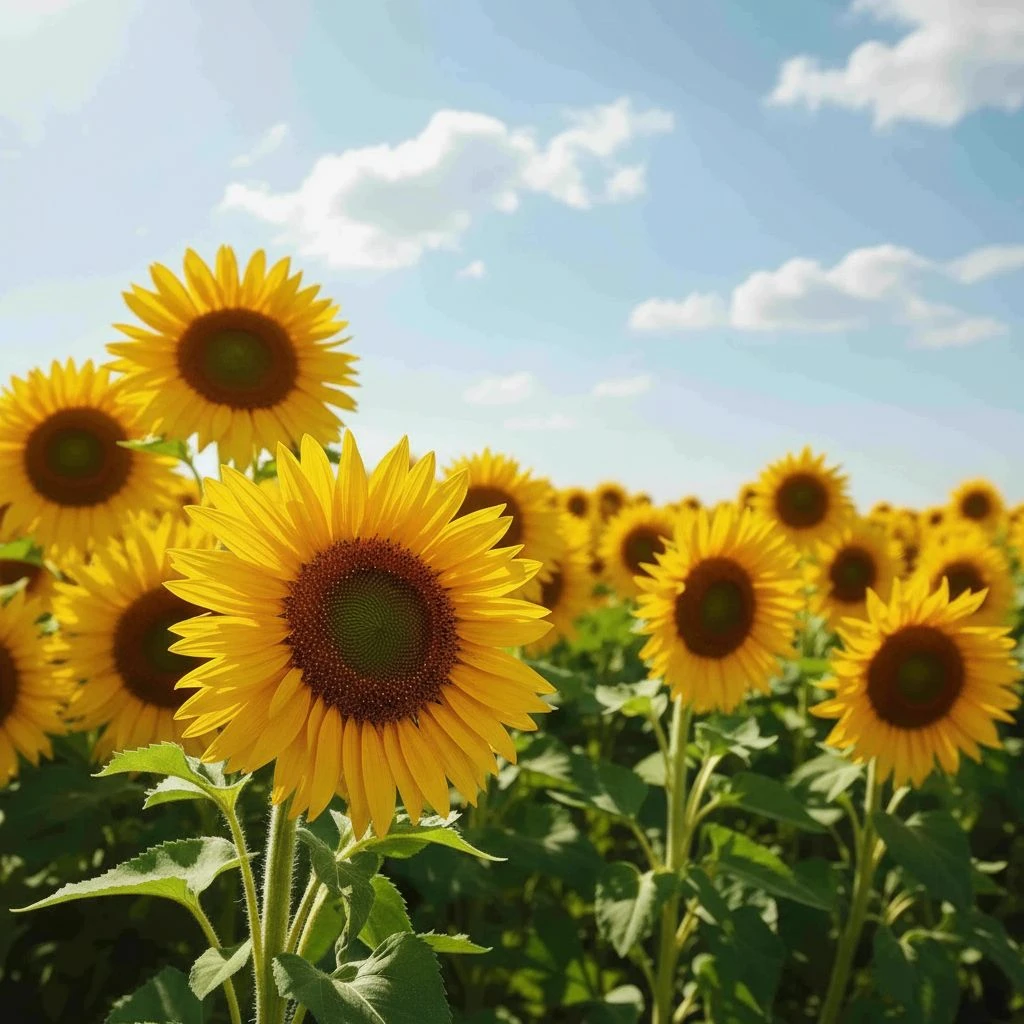
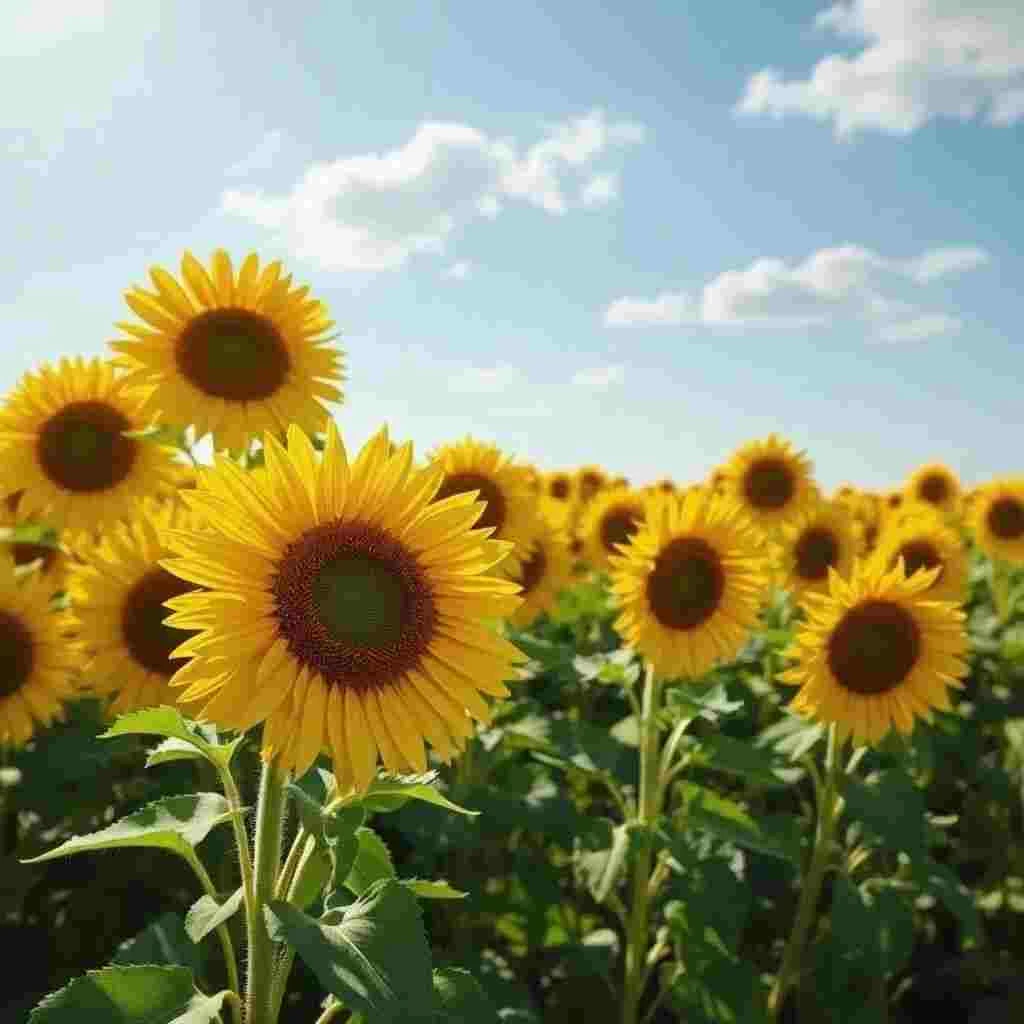 Before
How to upscale a photo in three steps
Upload your photo
Drag your image into the form above – JPG, PNG and WebP up to 10 MB.
Choose 2× or 4× upscaling
After you sign up for free, the edit starts in the app: AI increases the resolution and reconstructs details.
Download your photo in higher resolution
Use your finished photo on a website, in a presentation or send it to print.
When should you upscale a photo?
Higher resolution helps whenever a photo needs to look good at a larger size.
Prints and wall art
With higher resolution, your phone photo is ready for a poster, canvas print or catalog.
Product photos
Enlarge small supplier images so shoppers can zoom in on the details in your store.
Old and scanned photos
Give family photos and album scans the resolution they need for large screens and print.
Presentations and websites
Keep images sharp across the full width of a slide or page.
Social Media
Enlarge a small crop from a photo to fit a post or cover image.
AI-generated images
Upscale a generated image to a resolution suitable for print or a banner.
Can I upscale photos for free?
Try photo upscaling for free with your welcome credit after signing up. For regular use, it’s part of the subscription.
Free
A classic online editor – crop, resize, filters, color adjustment and text. No installation and no payment card. On top of that, you can try AI photo upscaling with your welcome credit after registering.
In the subscription
AI photo upscaling at 2× or 4× and high-quality downloads. Available starting from the Basic plan.
View pricingPhoto upscaling FAQ
Something missing? Get in touch.
How do I enlarge a photo without losing quality?
Upload a photo and choose 2× or 4× upscaling. AI reconstructs missing details rather than just enlarging pixels, so your photo stays sharp. Follow the steps in our guide to upscaling photos for print.
Can I upscale a photo for free?
Sign up without a payment card and try photo upscaling for free with your welcome credit. For regular use, it’s part of the subscription. The classic editor (crop, filters, text) is free.
How much can I enlarge my photo?
Double or quadruple each dimension. A 1024 × 1024 px photo can become a 4096 × 4096 px image.
How do I increase photo resolution for printing?
For high-quality prints, aim for around 300 dots per inch: a 10 × 15 cm photo needs approximately 1200 × 1800 px. Upscale a smaller image before sending it to print.
How can I enhance photo quality?
Upscaling reconstructs details and sharpens edges, making low-resolution images look much better. Use a prompt in the AI photo editor to fix noise, scratches or faded colors.
What photos can I upload?
JPG, PNG and WebP up to 10 MB.
Do I have to install anything?
No. Photo upscaling runs in your browser, with an interface in your language. In the same editor, you can remove the background, remove an unwanted object or use the other tools in the AI photo editor.
Discover the whole GuideGlare platform
Beyond photo upscaling, one account gives you an image generator, chat, presentations, copywriting and other GuideGlare tools.
AI Images
Generate images from text, edit photos and retouch with AI.
AI Chat
Conversational AI with a perfect command of your language and a long context.
AI Presentations
Presentations from a brief in minutes, export to PPTX.
AI Copywriting
Sales copy built on 16 proven copywriting frameworks.
AI Audio
Generate voice and music, and transcribe audio to text.
AI Documents
An AI editor for reports, articles and documents.
Social Media
Posts, content calendar and publishing.
AI Translator
Translate text, PDFs, images and audio.