

How to Remove Text from Images Using AI
The Graphics Are Done – But the Text is Wrong
Last year, you put together a fantastic poster for a summer festival. The designer spent hours on it, and the result looks great. But this year, the event is a month earlier. Or it got renamed. Or the entire visual is perfect for a new project, but the title prevents it.
And now you have a choice: pay the designer again for modifications, or redo the entire graphic from scratch.
Good graphics don’t age just because a date or name changes on them. Yet, precisely because of text elements, hundreds of successful visuals end up in the trash – or in a drawer from which no one will ever pull them out.
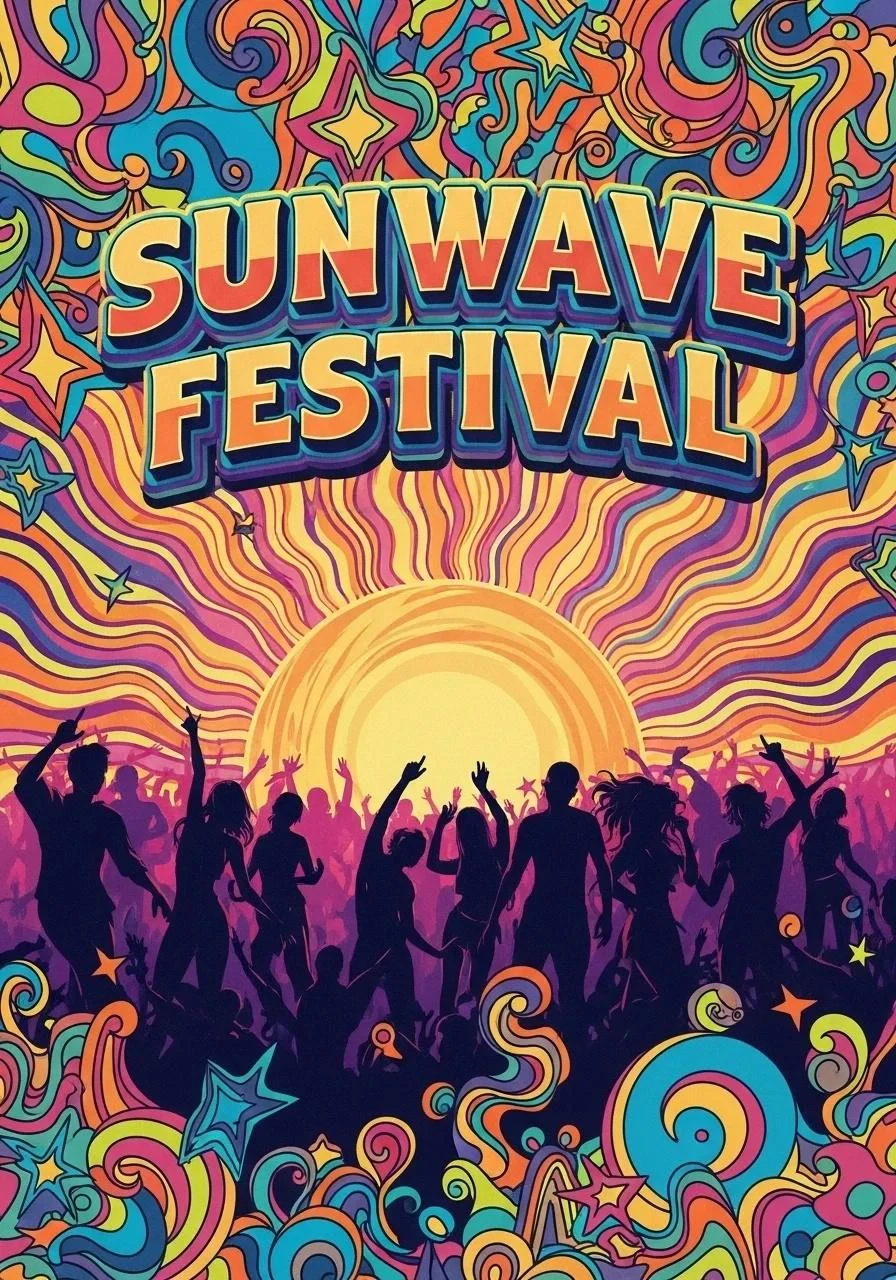
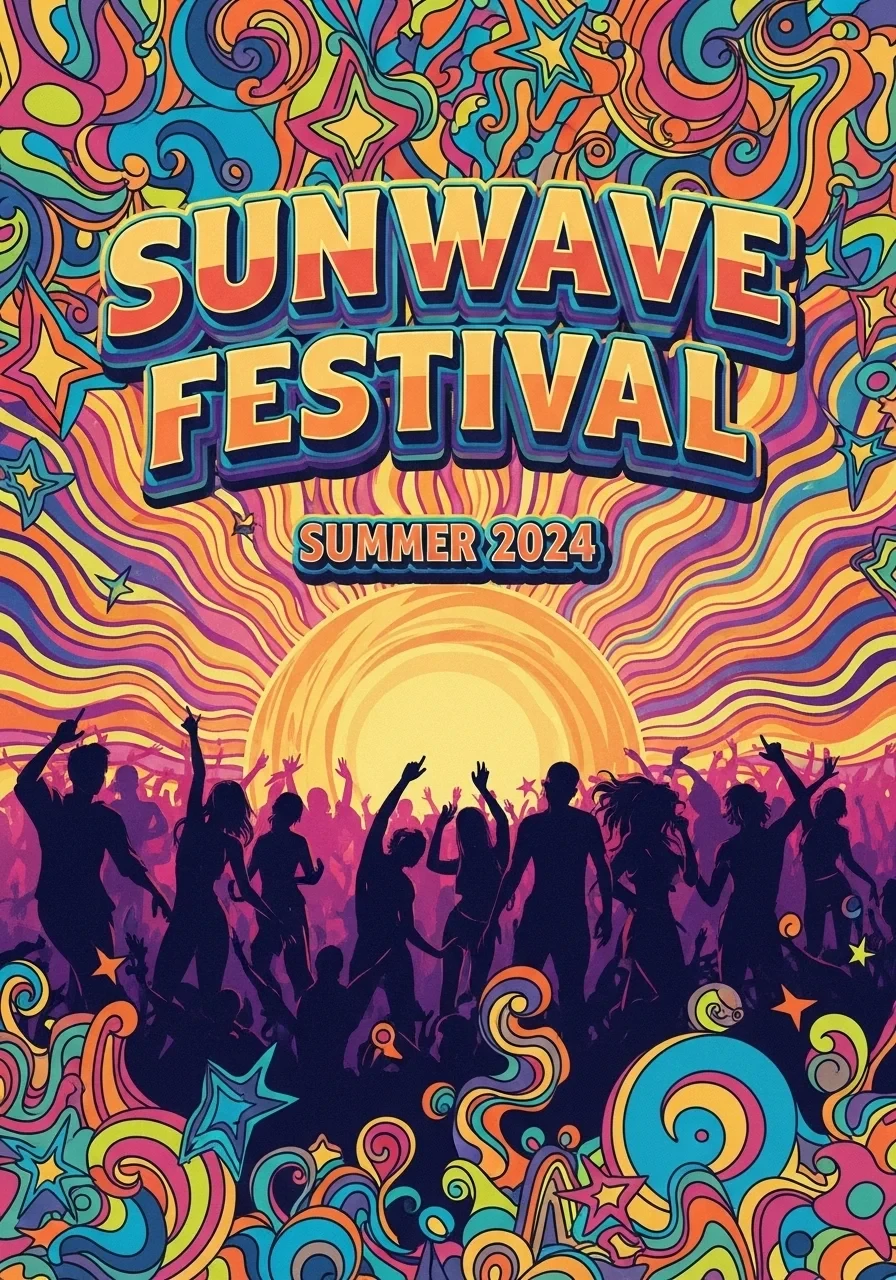
Why Manual Text Removal from Images Fails?
Perhaps you’ve tried it. Select a layer in the editor, eraser, blur, clone stamp… But:
- ❌ Complex background – Waves, textures, or illustrations under the text are not easily reconstructed
- ❌ Visible patches – The result doesn’t look like the original graphic, but rather like an intervention
- ❌ Hours of work – Even for an experienced designer, if the background isn’t simple
- ❌ You’re wasting time on content, instead of dedicating it to what moves your company forward
What if you could remove all text with one click?
Imagine removing the event name and date from a poster – and the original background naturally reappears underneath, as if no text had ever been there. No smudges, no patches. A clean template ready for reuse.


That’s exactly what GuideGlare AI image editor can do. Instead of blurring, AI analyzes the context of the entire image, understands textures, patterns, and naturally calculates what was under the text – or what logically belongs there.
How to Remove Text from an Image Using AI
Advanced AI tools like GuideGlare offer different approaches. One for situations where you want to erase all text at once, and another for precise control – for example, when you only want to remove a date and keep the name.
Method 1: Remove Text (one-click)
✅ Ideal for:
- Posters where you want to erase all text and reuse the graphic as a template
- Flyers with a date or event name that repeats annually
- Visuals after rebranding with an old company name or slogan
- Product photos with captions, prices, or promotional text
How to do it:
Step 1: Upload your image to the GuideGlare AI editor
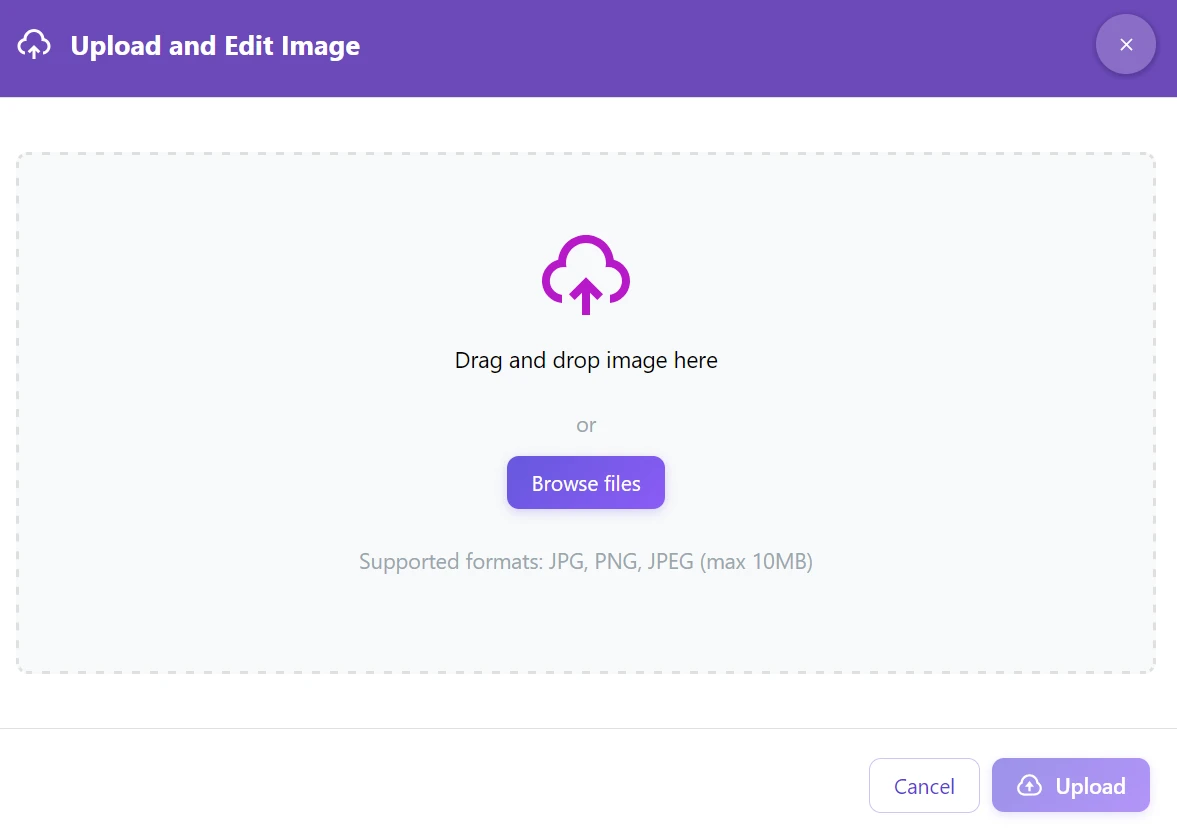
Step 2: In the right menu, click on “Edit with AI” → “Remove Text”
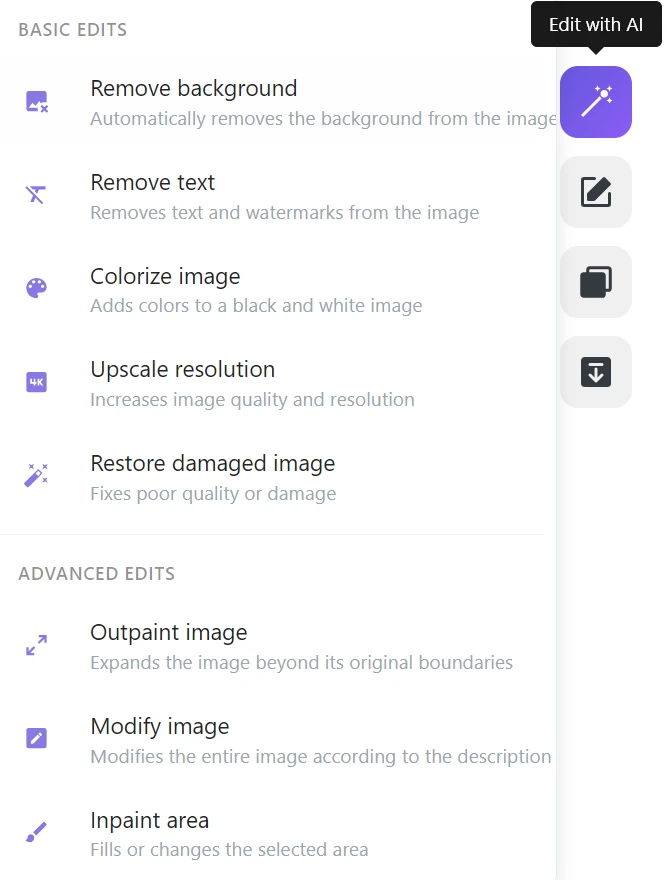
Step 3: A confirmation dialog will appear – click on “Remove Text”
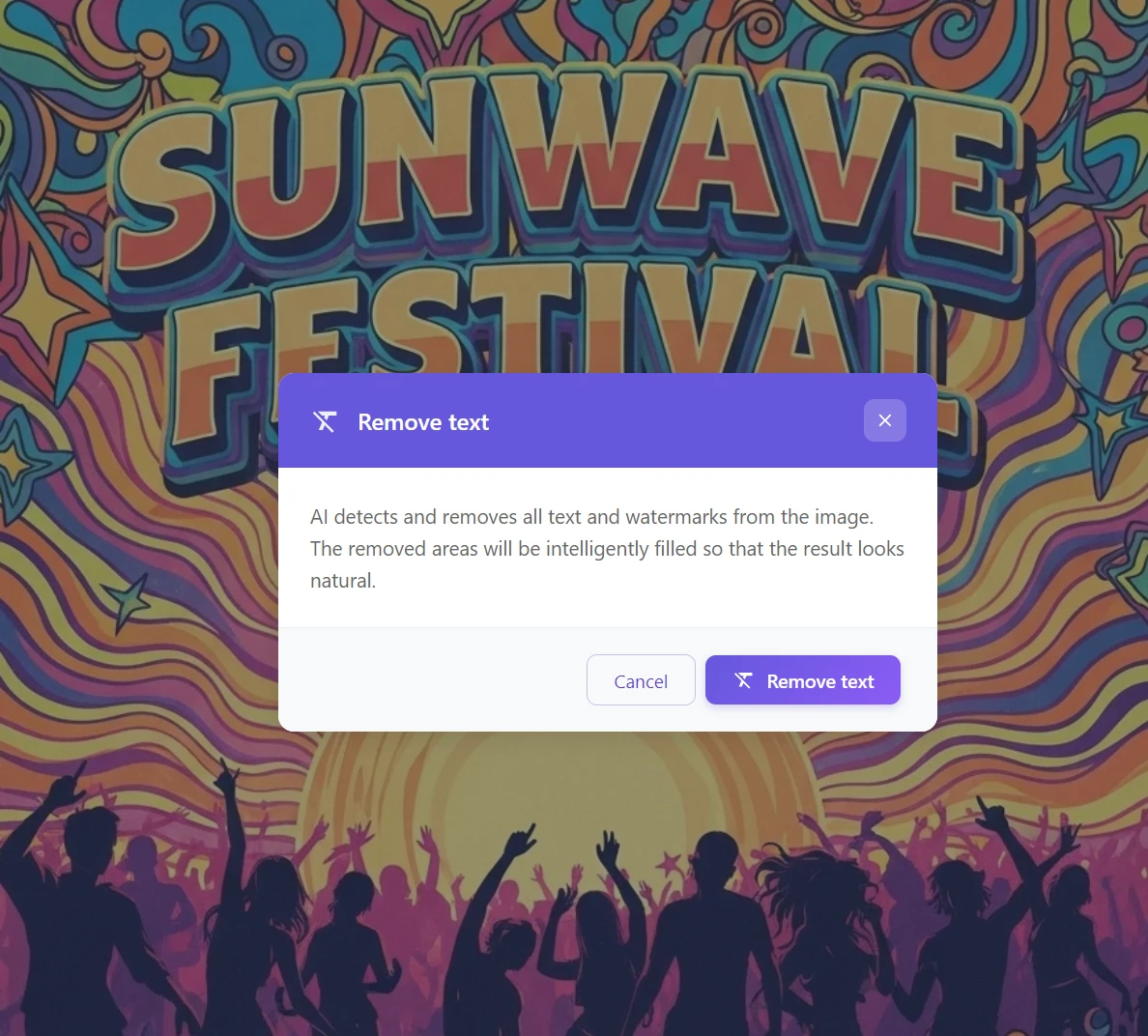
Step 4: Wait 10–20 seconds. AI will remove all text and intelligently fill the background.

💡 Tip: This function removes all recognized text at once. If you want to keep some text and delete only a specific element, use Method 2.
Method 2: Inpaint Area (precise control over specific text)
✅ Ideal for:
- Posters where you only want to change the date, but keep the name
- Text blending with the background that AI doesn’t automatically detect
- Situations where you need to specify what the area should be filled with after text deletion
- Complex backgrounds where you want to ensure a precise result
How to do it:
Step 1: In the AI photo editor menu, select “Edit with AI” → “Inpaint Area”
Step 2: Use the brush to paint over the text you want to remove
- You don’t have to be pixel-perfect – AI will recognize the boundaries
- We recommend selecting a slightly larger area than the text itself, so AI better understands the surrounding context
Step 3: In the “What do you want to create in the selected area” field, type in your language what the area should be replaced with:
- “Continuation of waves and colors from the surroundings”
- “Clean background like the surroundings”
- “Smooth color transitions”
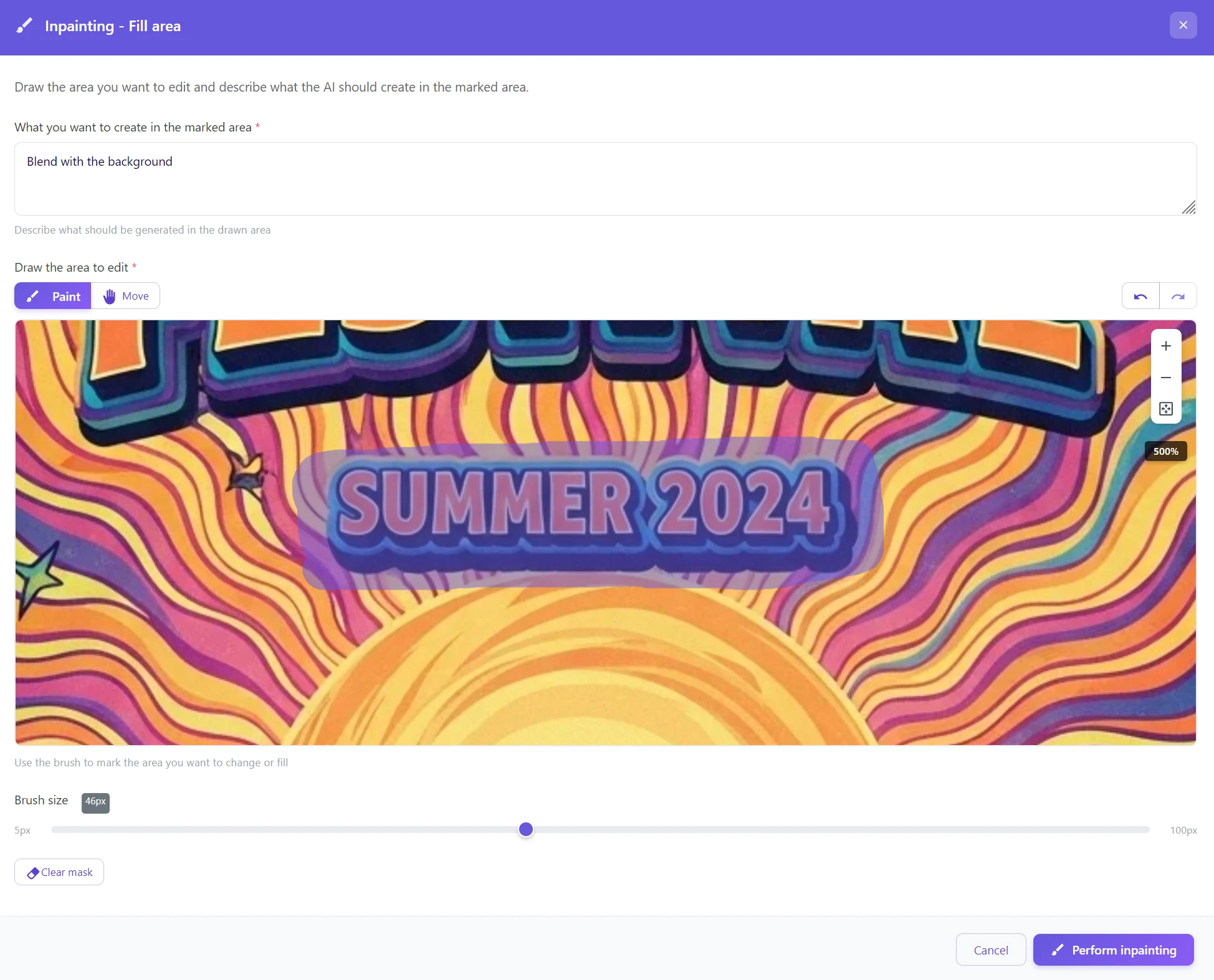
Step 4: Click on “Perform inpainting” and wait 10–20 seconds
💡 Tip: GuideGlare AI understands your language. Enter instructions in Czech, Slovak, or any other language – the result will be equally high quality.
When to Use Which Method?
| Remove Text | Inpaint Area |
|---|---|
| You want to delete all text at once | You want to remove only a specific element |
| The entire poster as a clean template | Changing only the date or subheading |
| Faster – one click | More precise – you control what disappears |
| AI detects text automatically | You manually select text with a brush |
💡 Golden Rule: Do you want to turn a graphic into a blank template? → Remove Text. Do you want to change only one specific element? → Inpaint Area.
Practical Examples Where AI Text Removal Saves You Time
AI text removal is useful wherever a visual is otherwise great, but the text is no longer valid: the date is old, the price is gone, the slogan has changed, or you need the same graphic in a different language. It works simply: you select the text (or the entire area) and AI calculates the background so that no traces of the text remain.
Recurring Events and Festivals
Many events run annually with the same visual: same colors, same background, same layout. Only a detail changes – most often the date, year, location, or time. In such a situation, it’s a shame to have the entire poster or banners redrawn from scratch every time. Just remove the old information and add the new.
→ Inpaint Area: You remove only the year or date, the rest of the visual remains
Rebranding and New Company Name
During rebranding, you often encounter a practical problem: you have a pile of materials in your archive with the old name, slogan, or domain. Some are photos (shop window signs, roll-ups), some are banners and social media graphics. Manually cleaning each visual is time-consuming. AI text removal gives you a clean version that you can then work with as a template.
→ Remove Text: AI cleans text from the entire image at once – you get a clean template for new branding
Product and Marketing Materials
Advertising visuals often contain temporary text: promotional price, discount, seasonal slogan, limited-time offer. Once the promotion ends, the visual would still be usable, it just shouldn’t carry old information. AI text removal allows you to recycle quality graphics without having to involve a designer every time.
→ Remove Text: Deleting a price and reusing the visual takes seconds, not hours with a designer
Localization for Different Markets
You have the same campaign, but need multiple language versions. The basic graphic is the same, only the text changes. AI text removal from the original version creates a clean background into which you can insert translated text (ideally while preserving the font and style). This is significantly faster than redoing each visual separately.
→ Remove Text: The basic graphic remains, only the text is replaced
Tips for Best Results
1. Select slightly more than just the text
When using Inpaint Area, it’s better to capture a bit of the surrounding background – AI will better understand what to fill in.
2. Provide specific descriptions
- ❌ “Make it pretty”
- ✅ “Continuation of the wavy pattern with warm colors like the surroundings”
3. If the result isn’t perfect, try again
AI sometimes needs a second attempt. Adjust the selected area or rephrase the description and run the inpainting again.
4. For very complex backgrounds, choose Inpaint Area
Automatic Remove Text works best for texts with clear contrast. For complex patterns, a manually selected area might be more precise.
AI vs. Manual Text Removal from Images
| Criterion | Manual Editing | AI in GuideGlare |
|---|---|---|
| ⏱️ Time | 20–60 minutes per image | 10–30 seconds |
| 🎯 Result | Visible patches and smudges | Natural background without traces |
| 💡 Skills | Advanced traditional editor and designer | None needed |
| 🔄 Consistency | Depends on the person | Always consistent quality |
| 💰 Price | Tens to hundreds of euros | GuideGlare from 15 €/month |
Recycle Your Graphics Today
Good visuals deserve a longer lifespan. With AI image editing in GuideGlare, you can remove unwanted text from any graphic in a few clicks – and the result will look as if the text was never there.
Upload your graphic, choose the text removal method, and AI will do the rest. You’ll save hours of designer work and hundreds of euros on unnecessary reworks.
Try Text Removal from Images with GuideGlare
To use AI tools, you need at least a Basic plan
Frequently Asked Questions
Is text removal from an image free?
Text removal is part of GuideGlare’s AI tools, so it’s available starting from the Basic plan. This gives you not only the automatic Remove Text but also the more precise Inpaint Area mode and other fine-tuning features (e.g., upscaling). If you want to get a feel for GuideGlare first, you can start with a trial version – but AI text removal itself requires an active plan.
What if AI doesn’t automatically recognize text?
This can happen especially with text that blends with the background, has an atypical font, is part of an illustration, or is too small. In such a case, use Inpaint Area: you manually select the text with a brush, and AI will fill in the missing part to match the surrounding pattern, colors, and textures.
Tip for a better result: select a slightly larger area than just the letters themselves (at least a few pixels around) and in the description, write something like “continuation of the pattern and colors from the surroundings” or “clean background like the surroundings”.
Can I keep some text and delete only a specific inscription?
Yes – and that’s precisely why the Inpaint Area mode exists. Automatic Remove Text tries to clear all recognized text at once, so it’s not ideal when you only want to change a date, price, or a single sentence.
The process is simple: select Inpaint Area, use the brush to mark only the specific text you want to disappear, and start inpainting. The rest of the image (including the text you want to keep) will remain unchanged.
How long does processing take?
Most often, it’s done in 10–30 seconds. It mainly depends on the image size (resolution) and how complex the background under the text is (textures, illustrations, patterns, gradients).
For a very complex poster or a large file, it might take a bit longer. If the result isn’t perfect on the first try, a second attempt usually helps – either by slightly adjusting the selection or the fill description (e.g., “smooth color transition without sharp edges”).
Does it work on a mobile phone?
Yes. GuideGlare runs in a browser, so it works on mobile, tablet, and computer without installation. On mobile, it’s ideal for quick edits or checking results.
If you want to make very precise brush selections (for small text), a larger screen or working on a computer is usually more convenient – but technically the process is the same.
Will the image quality decrease after editing?
In most common cases, the quality will remain visually the same. However, with some very high resolutions or when adding complex details, the area after the removed text might appear slightly softer (less sharp) because AI “calculates” part of the image.
If you need the result for print or in top quality, we recommend using AI upscaling after text removal to restore details and sharpness. Alternatively, you can try inpainting again with a slightly different selection – often it’s enough to select a slightly larger surrounding area for AI to better match textures.
What image formats do you support?
GuideGlare supports the most common formats for web and graphics: JPG, PNG, and WebP. If you have an image in another format (e.g., HEIC), the fastest way is to convert it to PNG or JPG and then upload it to the editor.