

Remove Photo Background with AI: Handles Hair & Transparency
Removing a Photo Background Looks Easy at First Glance
You select the object, click “Delete Background”, and it’s done. But the result rarely looks as it should.
The edges are jagged. Hair turned into one dark blob. A glass bottle lost its transparency. And a white collar blended with the white background, so AI didn’t recognize it at all.
Background removal is one of the most frequently used photo edits. Whether you need a precise object cutout from a photo or quick background removal for graphic design, without the right technology, the result is often disappointing.
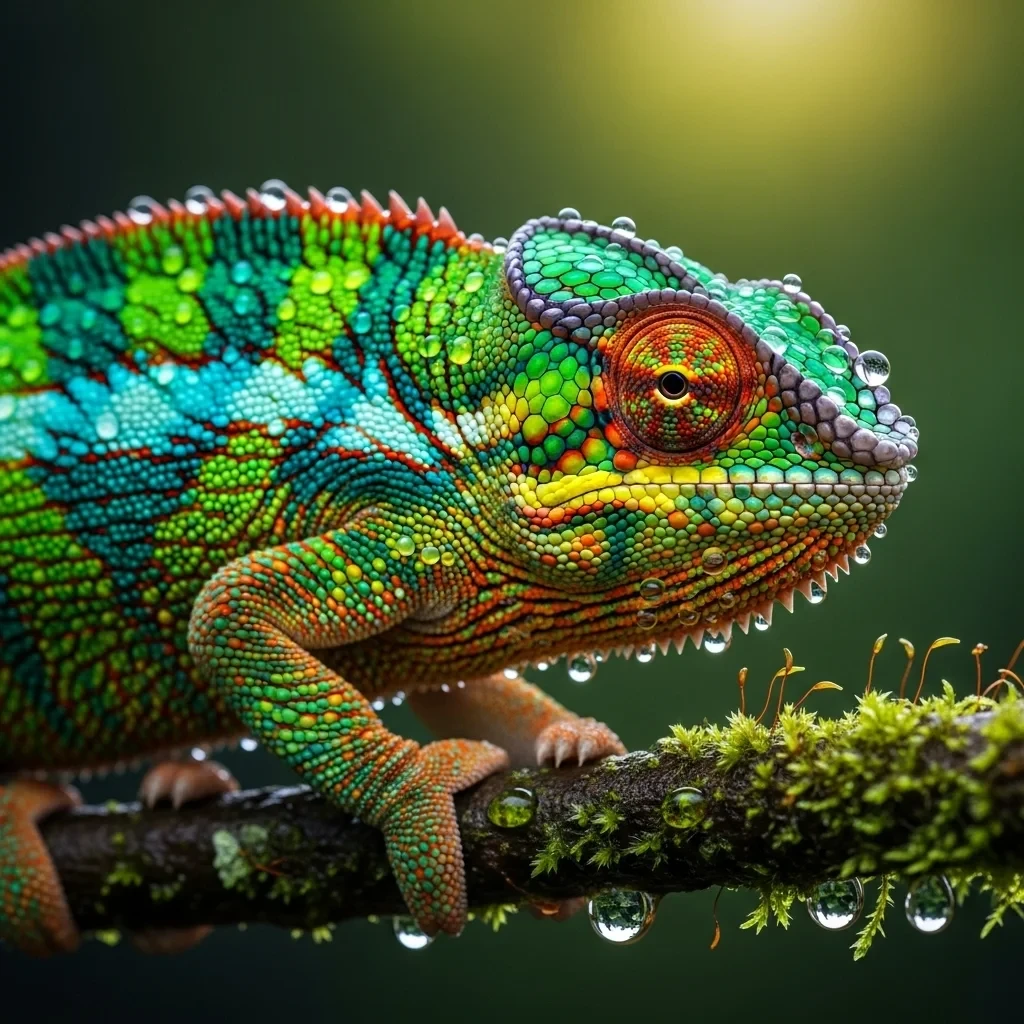
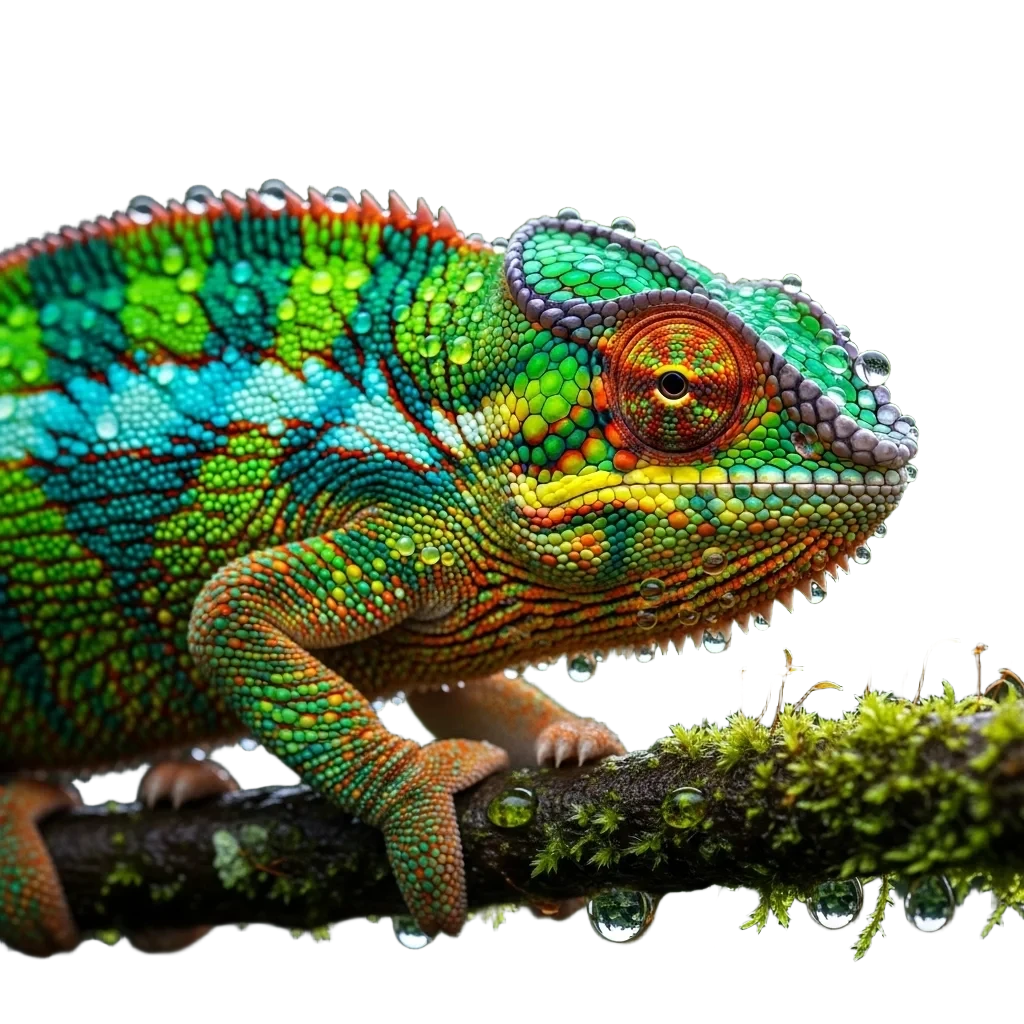
Step-by-Step Guide: How to Remove a Photo Background with AI in 3 Clicks
Using AI for background removal in GuideGlare is intuitive and fast. Follow these simple steps:
Step 1: Upload Your Image to GuideGlare
Start by uploading the photo from which you want to remove the background. In the menu, select Gallery and then click the “Upload and edit your own image” button.
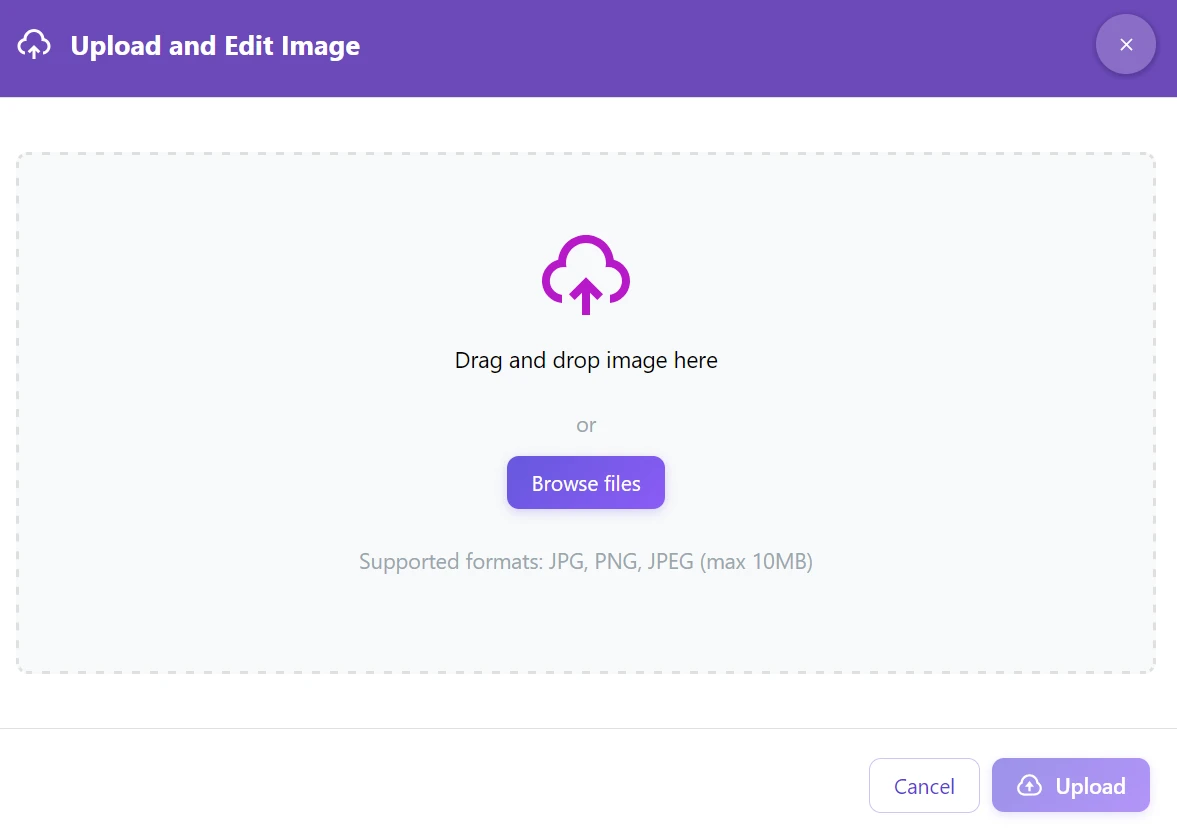
For perfect background removal
The quality of the cutout depends on the quality of the source photo. If your image is slightly blurry or in low resolution, AI might have a harder time detecting edges. We recommend first running the photo through our AI Upscaling feature before removing the background. This will sharpen the image, bring out details, and make subsequent background removal more precise.
Step 2: Select the “Remove Background” Tool
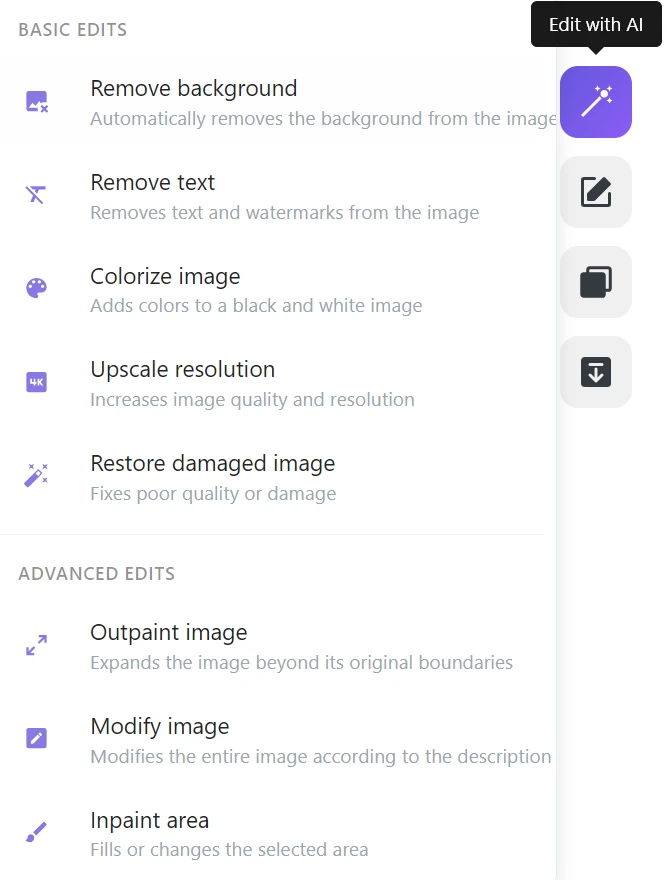
Once the image is uploaded, in the right panel of the GuideGlare interface, find the “Basic Edits” section and click “Remove Background” (Odstranit pozadí).
Step 3: Confirm and Let AI Work
After selecting the tool, a dialog box with information about the function will appear. Click the Remove Background button to start the process. GuideGlare AI automatically detects the main object, performs its perfect isolation, and in a moment generates an image with a transparent background (in PNG format).

Try it now in GuideGlare
Create an account in the application and experience how easy it is to remove the background from any photo.
Why AI Background Removal Outperforms Traditional Tools
The background removal feature in GuideGlare AI editor is not a simple “color erasing behind the object”. It’s a layered image analysis that solves precisely the problems that cheap tools ignore.
Precise Edge Detection
Our online AI photo editor leaves nothing to chance. AI analyzes every pixel at the boundary between the object and the background and evaluates how to perform a clean image cutout so that it’s clear where the object begins and where it precisely ends. This also applies to:
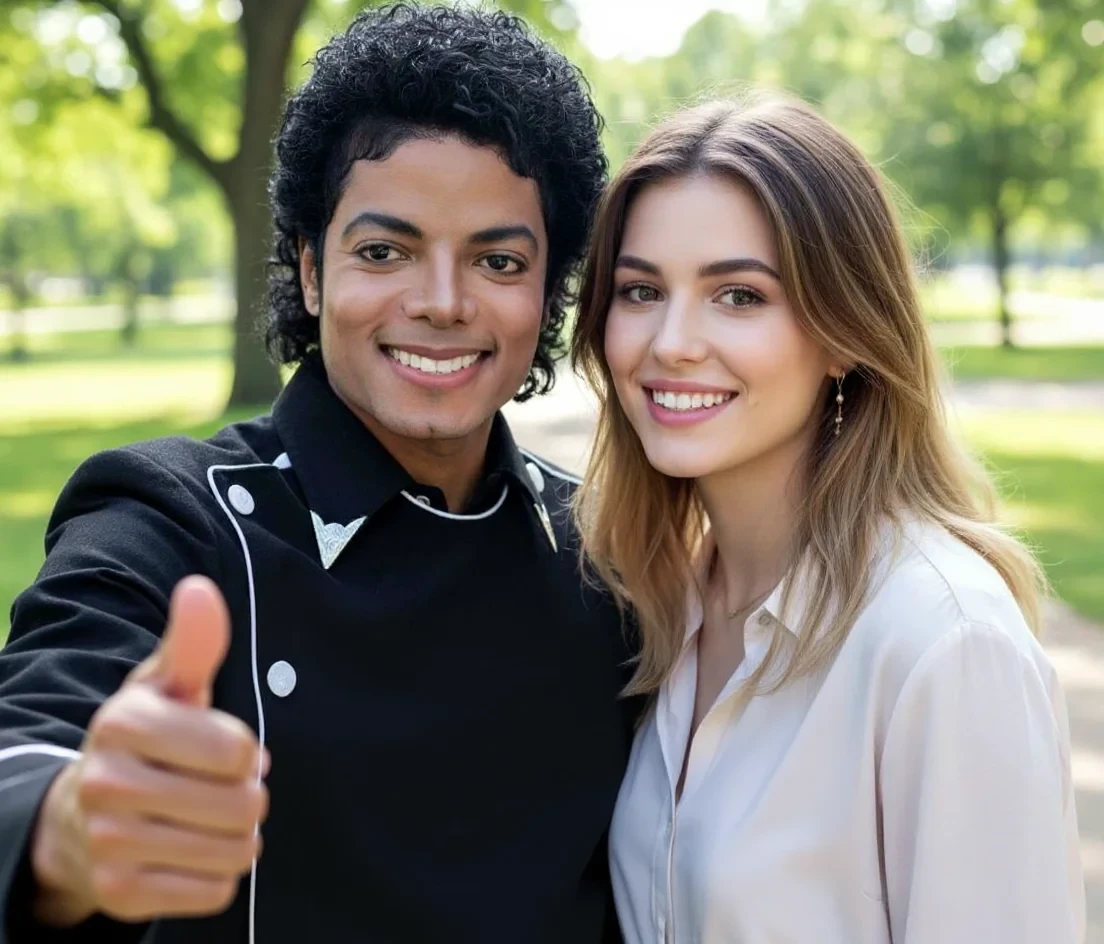
- Fine hair and locks – individual strands are preserved, not cut out as one solid shape
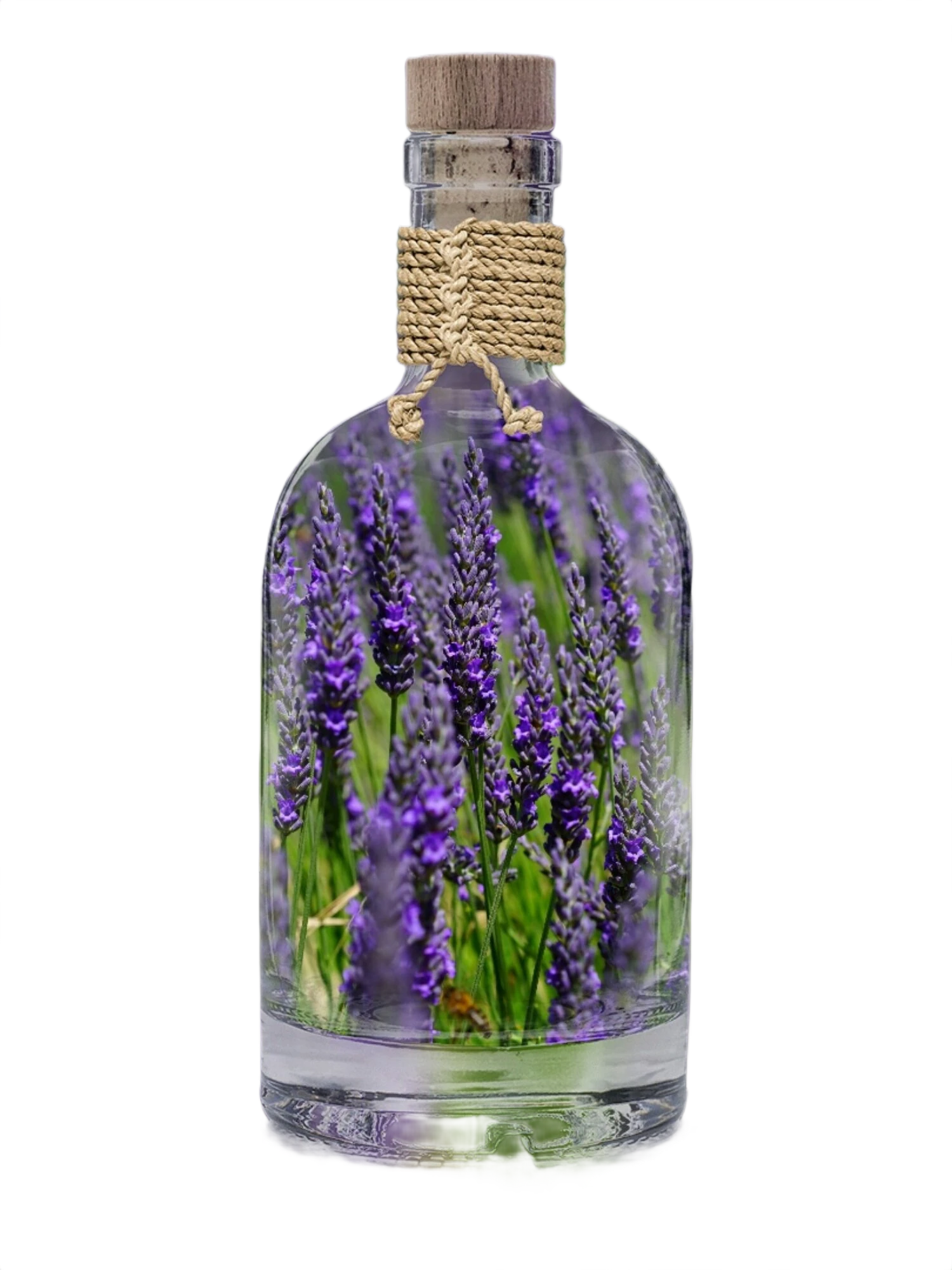
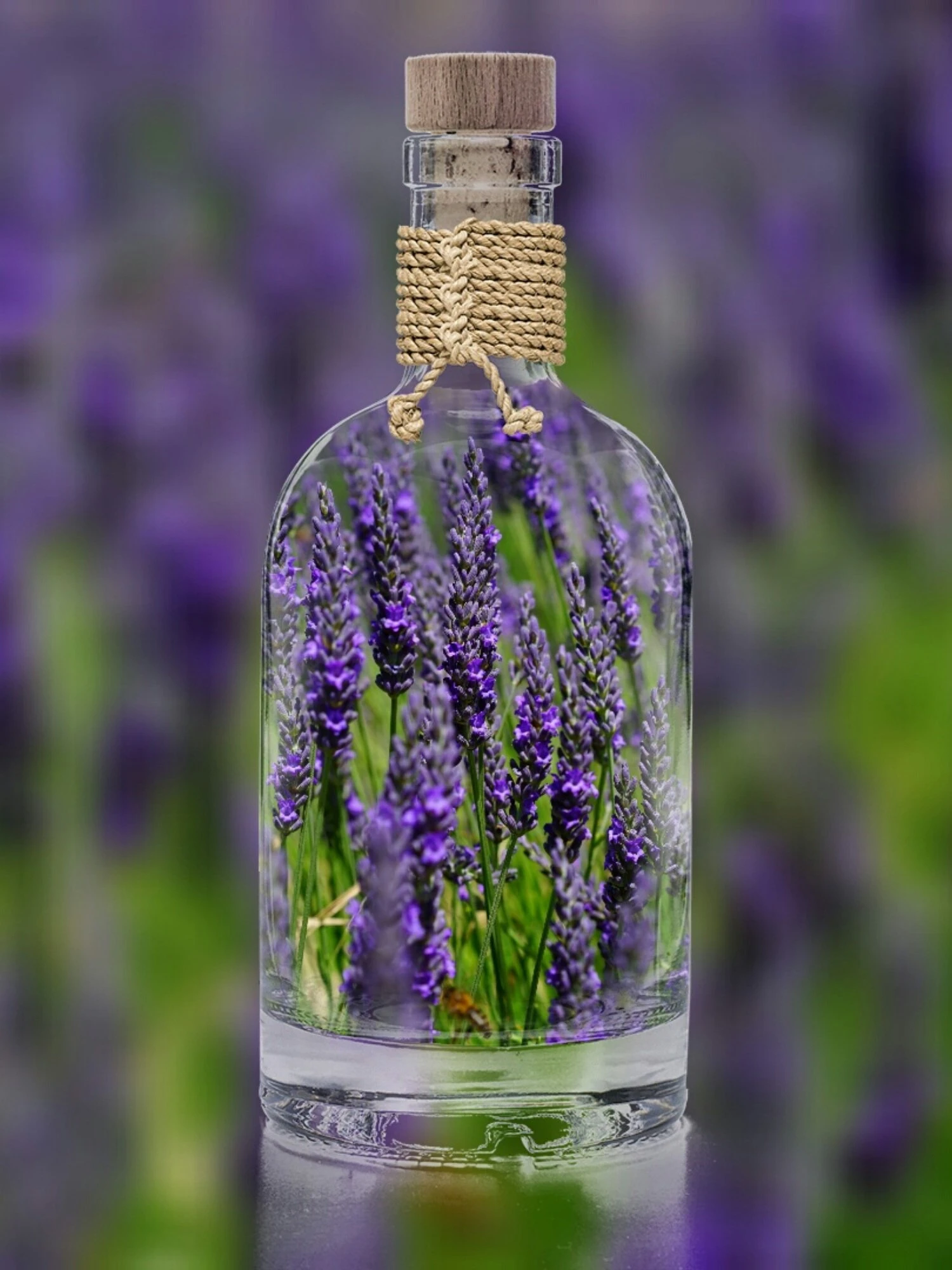
- Transparent and semi-transparent objects – glass, plastic packaging, bottles, or translucent textiles retain their natural transparency
- Complex textures at the edges – animal fur, lace, frayed fabric edges
Preserving Natural Transparency
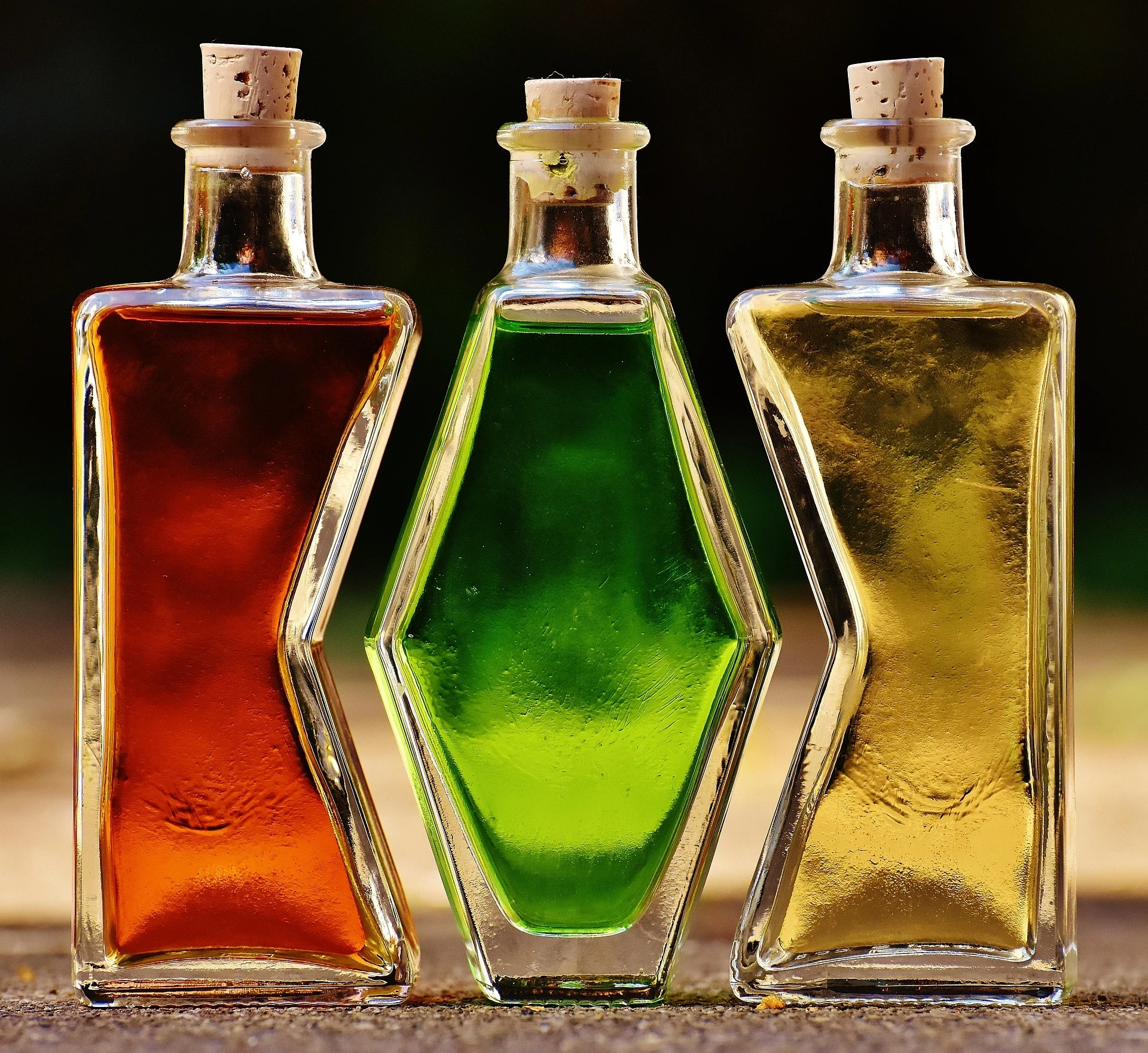
Glass, transparent plastic packaging, or bottles with liquid pose an almost insurmountable problem for traditional tools. Either the entire object disappears, or the transparent parts remain as opaque color patches.
GuideGlare AI recognizes transparent materials as a separate category and processes them separately – the result is an object that looks natural even on a new background.

For Further Graphic Work
The resulting image will be downloaded in PNG format with the so-called alpha channel (transparency) preserved. You can directly drag and drop this file into your favorite editors like Canva, Figma, or Photoshop. If you are working with glass or semi-transparent objects, try reducing the opacity of the cutout itself by 5–10% on the new background. This will help the object blend even better optically with the new environment.
Full-Resolution Processing
The resulting image retains its original quality and resolution. There is no compression or loss of detail, which is crucial especially for product photos or professional portraits.
What Is AI Background Removal Good For?
Technical precision is not an end in itself. Its true value becomes apparent the moment you use the resulting image.
Products look like they’re from a professional photo studio.
When cutouts are truly clean and free of artifacts, the resulting photo looks premium even without complex retouching. The customer then doesn’t perceive “erased” edges, jagged contours, or gray halos around the product – they only see the product itself as it should be. For e-shops, this is surprisingly crucial: visual quality directly supports brand credibility, reduces purchase doubts, and in practice translates into a higher conversion rate.
Objects can be freely placed into a new environment.
People, products, and animals cut out with pixel precision can then be easily moved to a new scene – onto a different background, into graphics, banners, presentations, or even mockups, or merged with another photo. Thanks to precise edges and correctly resolved details (hair, fur, translucent materials, fine contours), no visible seams or “cut-out” effect are created. The result is a natural integration that holds together even with high magnification or printing.
For E-commerce and Marketing
An empty transparent background is a great start, but what's next? Instead of laboriously searching for photos in stock libraries, you can directly use GuideGlare's AI Change Image feature. Simply describe the new scene with text (e.g., “product lying on a marble slab bathed in morning sun”) and AI will automatically place your clean cutout into a photorealistic environment – complete with correct shadows and reflections!

The result requires no manual fine-tuning.
The output is ready to use immediately. With less precise tools, you often end up having to manually “rescue” details – typically hair edges, translucent materials, thin lines, or small protrusions. This means minutes to hours extra spent on repairs in the editor, masking, and edge cleaning. But when you get a precise cutout on the first try, this step is completely eliminated, and the entire process speeds up significantly.
Consistent results across hundreds of photos.
Once you process a larger volume (product catalog, e-shop, series of portraits), the human factor starts to show: everyone edits slightly differently, diligence, pace, and attention to detail vary – and the results are then inconsistent. AI, on the other hand, maintains the same standard from the first to the thousandth photo: consistent precision, identical edge handling, and repeatable outputs. This makes the entire catalog or series appear visually clean, professional, and unified.
What This Means for Your Time, Money, and Impression
This is the result that matters.
⏱️ Hours of work → seconds
Manual background removal with a quality result takes an experienced graphic designer 15–45 minutes per photo in a standard editor. For complex objects (hair, transparency, fur), even longer. GuideGlare AI processes a photo in 10–30 seconds.
🛍️ Professional product photos without a photo studio
A clean product cutout is standard for Amazon, product comparison sites, or your own e-shop. You often receive photos from suppliers where it’s necessary to remove a white background or a watermark to match them with your website. Previously, this meant hiring a graphic designer; today, a photo in any condition is enough, and AI will create a product photo without a background in a few seconds.
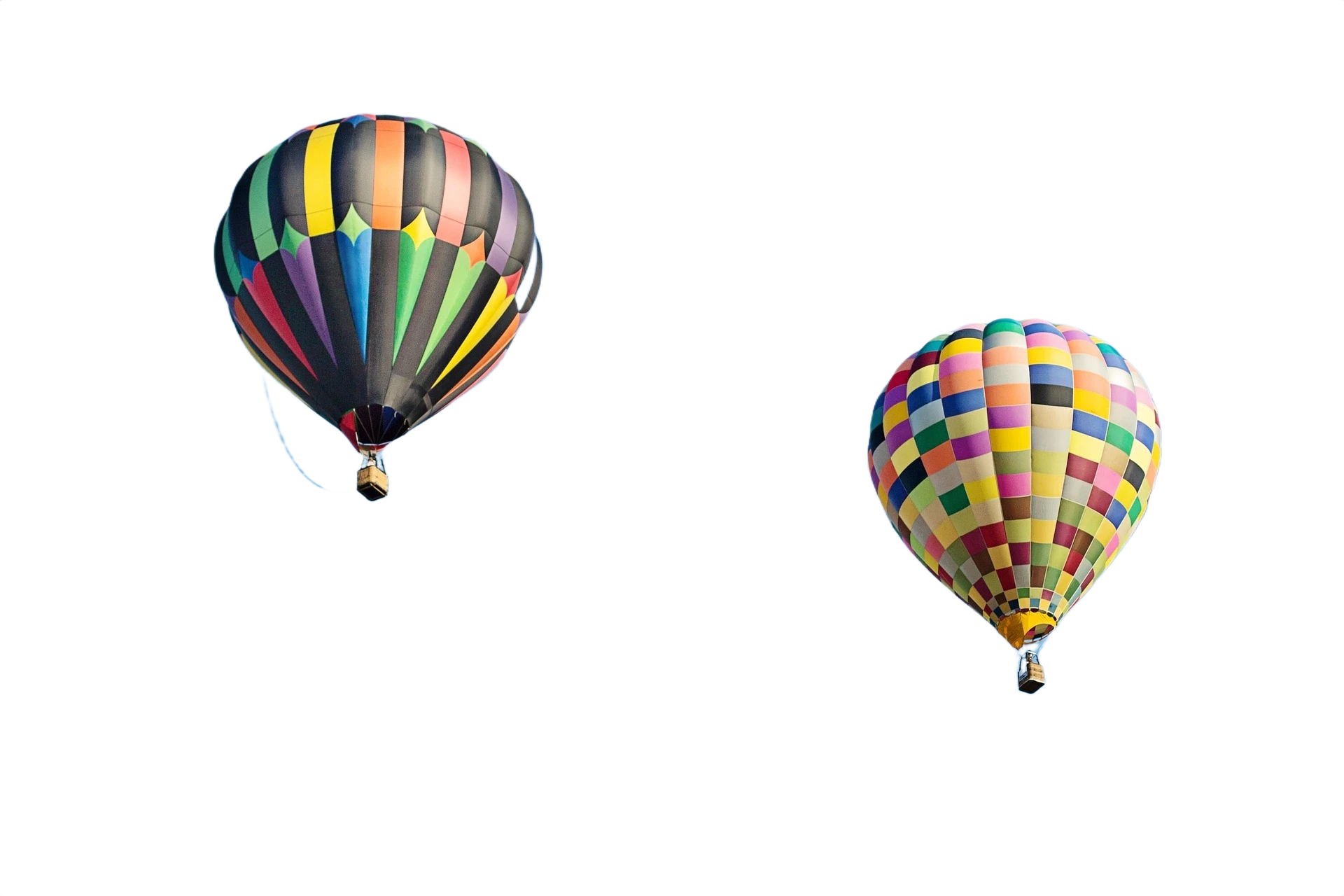
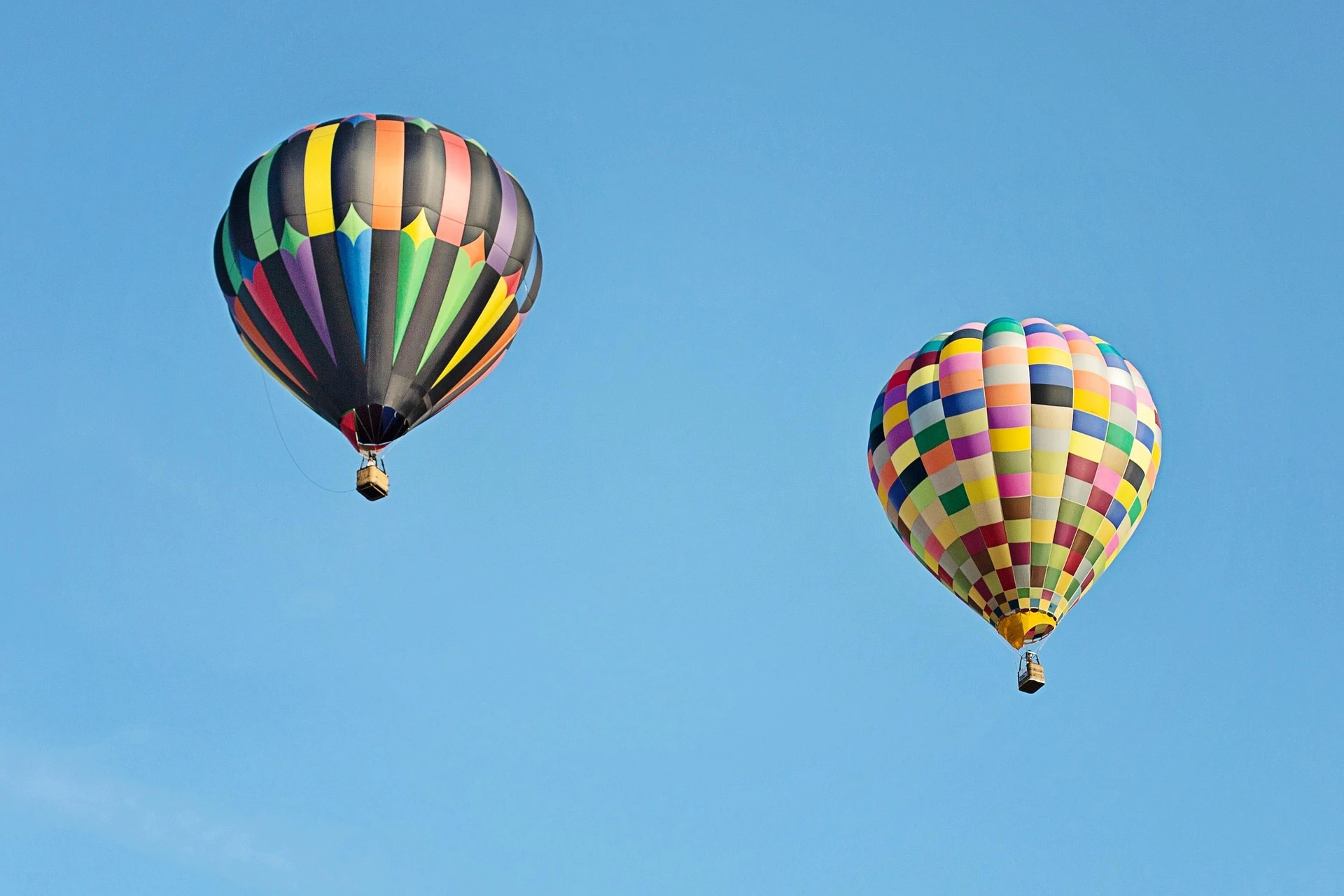
🎨 Graphic flexibility without relying on a graphic design studio
Need to create a PNG image for a website, prepare an object in multiple color variants, or for various ad formats? With this tool for background removal, anyone can do it – without photo editing knowledge, without an external graphic designer, without waiting.
💼 Consistent visual identity
Products or portraits always on the same clean background, with the same edge quality. Whether you process 5 or 500 photos.
Who is this feature for?
E-commerce and Product Management – Clean white cutout for marketplaces, e-shops, or catalogs. No photo studio needed.
Marketing and Social Media – Easily place objects, characters, or products into a new scene or graphic.
Photographers and Graphic Designers – Fast, precise cutout as a basis for further editing. Save hours on manual masking.
Companies after rebranding – Archival product photos with old backgrounds? AI quickly prepares them for a new visual style.
Comparison: AI Background Removal vs. Manual Editing
| Criterion | Manual Editing | AI in GuideGlare |
|---|---|---|
| ⏱️ Time per photo | 15–45 minutes | 10–30 seconds |
| 💇 Hair and fine edges | Very difficult | Automatically precise |
| 🔮 Transparent objects | Almost impossible | Handled by default |
| 🔁 Consistency in series | Depends on graphic designer | Always the same quality |
| 💰 Price | Tens to hundreds of euros | GuideGlare from 15 €/month |
No More Manual Background Removal. Let AI Handle It.
Stop wasting time on complex masking and manual retouching. Get a perfect PNG cutout with a transparent background in seconds. Whether it’s a portrait with flowing hair or a glass vase, GuideGlare delivers professional-quality results.
Save hours of work starting with the Basic plan.
Try it in the GuideGlare AI app
Remove backgrounds from photos, images, and digital art with one click. It's simple, try it out.
Frequently Asked Questions
Is photo background removal free?
To use advanced AI technology that handles details like hair or transparency, an active Basic plan is required in GuideGlare. Unlike common free online tools that often leave unsightly white edges or “nibble” at the object, our AI performs an in-depth analysis of every pixel. You pay for a professional result that you don’t have to manually fix for an hour in a graphic editor.
In what format will I download the resulting image?
Your image will be automatically saved in PNG format with preserved transparency (the so-called alpha channel) after background removal. This is an ideal format for further graphic work – you can directly insert the cutout into Canva, Photoshop, or your e-shop. The transparent background ensures that the object blends perfectly naturally with any new backdrop.
How does AI handle fine details like hair or animal fur?
Detecting fine and irregular edges is one of the strongest aspects of our algorithm. Classic tools often create a “helmet” around the head, but GuideGlare AI recognizes individual hair strands and fine fur fibers. This makes human portraits and animal product photos look professional, without the need for complex masking that previously took tens of minutes of manual work.
Does background removal really work for glass and transparent objects?
Yes, and this is precisely where GuideGlare excels. Glass bottles, glasses, or transparent packaging are a nightmare for standard background “removers”. However, our AI understands the concept of transparency – it can separate the object from the background so that the glass remains clear and retains its reflections and semi-transparent character. This is crucial for product photography, where a bottle of wine or perfume must look authentic even on a new backdrop.
Can I insert a new background immediately after removing the original?
Absolutely. Once you have a clean cutout in PNG format, you have several options. You can upload it to your favorite graphic application, or use another GuideGlare feature – “Change Background”. Simply write a text description (e.g., “product on a marble table in the morning sun”) and AI will generate an entirely new scene, into which your object will be naturally placed, including shadows and reflections.
How long does it take to process one photo?
The entire process, from clicking the button to the finished cutout, usually takes between 10 to 30 seconds. The time may vary slightly depending on the resolution and complexity of the photo. Even so, it’s an incredible difference compared to manual pen tool cutting in a classic editor, which can take up to half an hour for complex objects. With GuideGlare, you can prepare an entire product catalog in a fraction of the time.
Will the photo quality and resolution remain the same?
Yes, GuideGlare works with your image in full quality. There is no drastic downsizing or compression that would destroy details. However, if you upload a photo that is already in low resolution, we recommend using our AI Upscaling feature after background removal, which will sharpen the image and prepare it even for large-format printing.