Merge Multiple Photos into One with AI
Want to combine two photos into one? And the result should look natural.
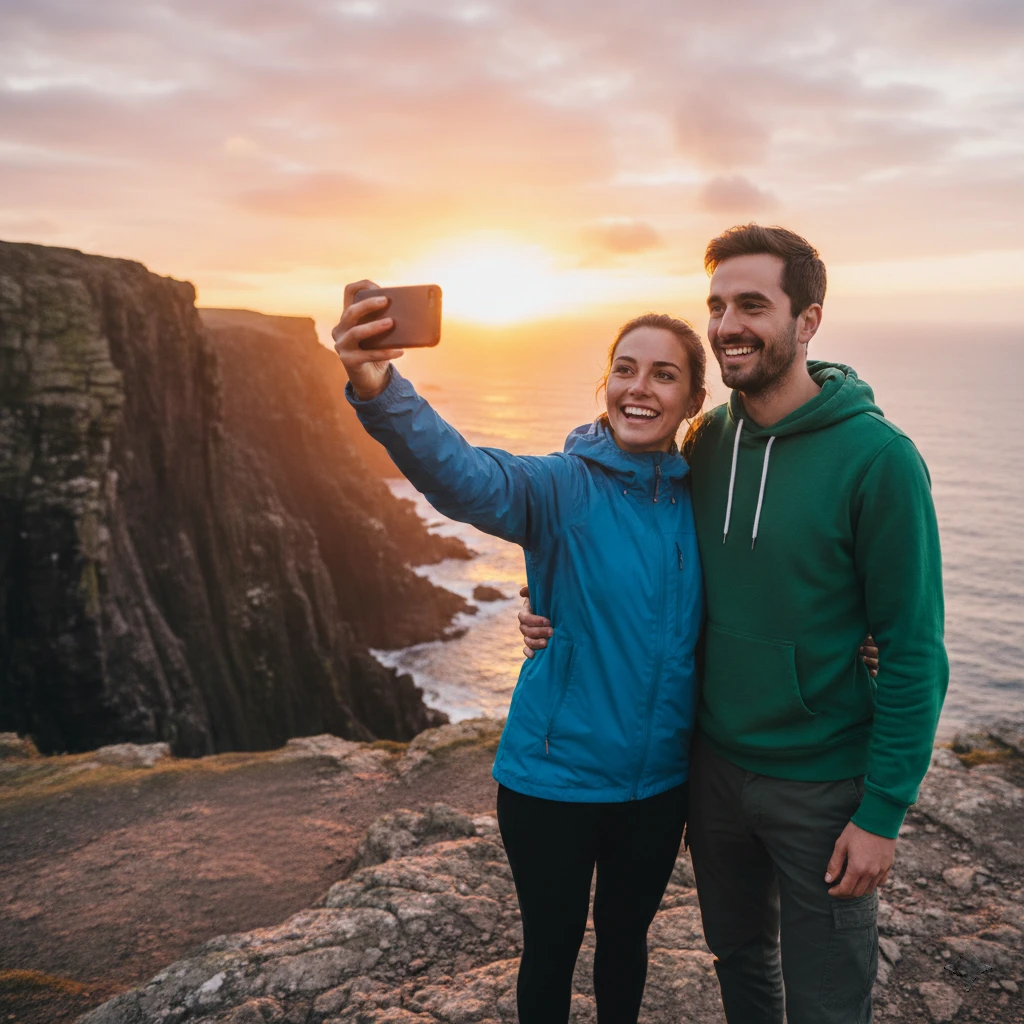
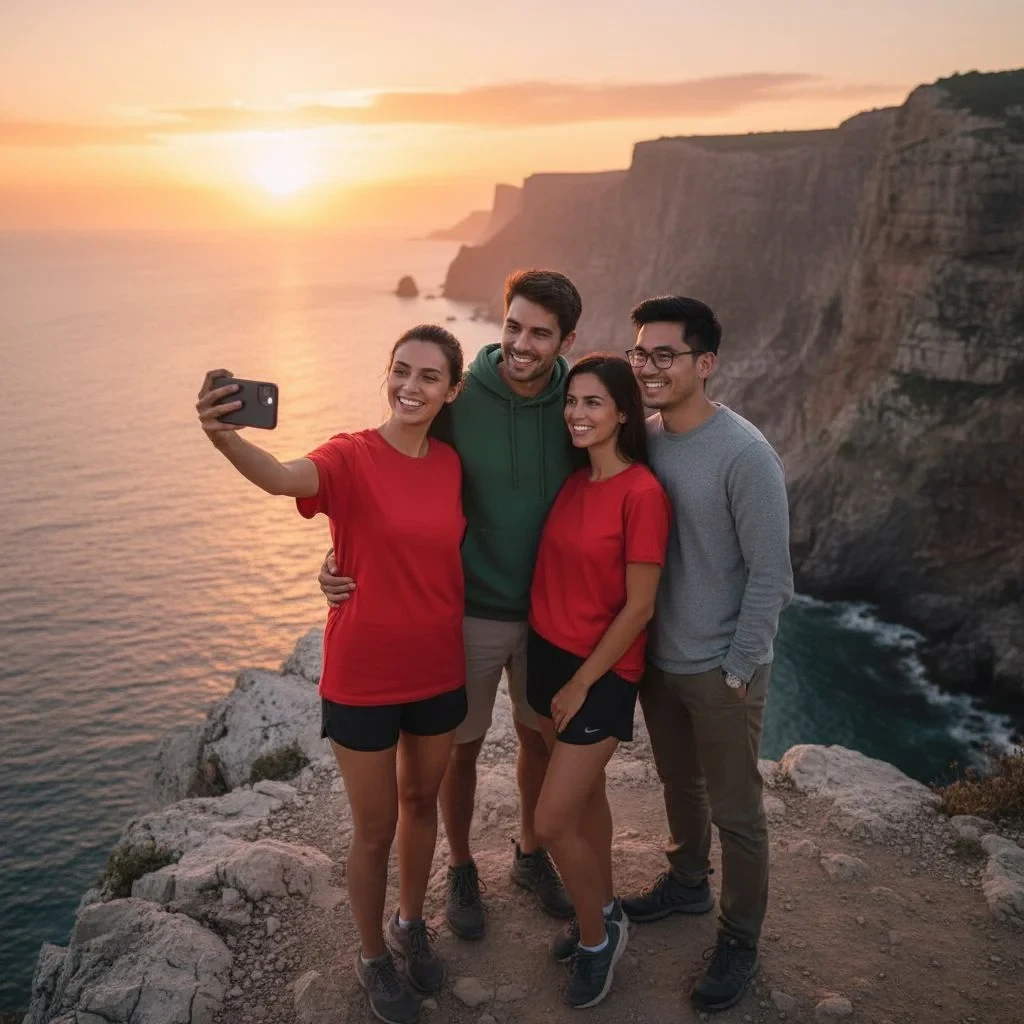
You have a great shot of a group of friends on the cliffs, but one friend is missing from the photo – they left early. Or you photographed a product, and the customer wants to see what it looks like on a specific person in a specific environment. Or you need to place a portrait into a different scene.
Combining multiple photos into one is one of the most requested editing tasks. And also one of the most difficult, if you don’t have the right tool.
Classic photo merging is a nightmare
If you’ve ever tried it manually, you know what we’re talking about.
Open a graphic editor. Upload both photos. Try to cut out a figure – and you’ll run into hair, transparent backgrounds, or complex clothing edges. You move it to a new scene and find that the lighting doesn’t match, the colors don’t look natural, and the figure looks like it’s cut out of another reality.
And that’s not even counting the time to blend colors, adjust shadows, and unify the overall mood of the shot.
The result? Hours of work and an outcome everyone recognizes as a montage.
Yet, all it takes is one thing: AI that understands the content of both photos simultaneously and can naturally connect them.
AI merges photos according to your description with one click
AI photo editor allows you to add up to 3 reference images to a base photo and tell the AI what you want to combine with a text description. The AI analyzes the context, light, and style of all images – and naturally merges them into one result.
No layers. No masking. No classic graphic editor.
How to merge multiple photos into one: Step-by-step
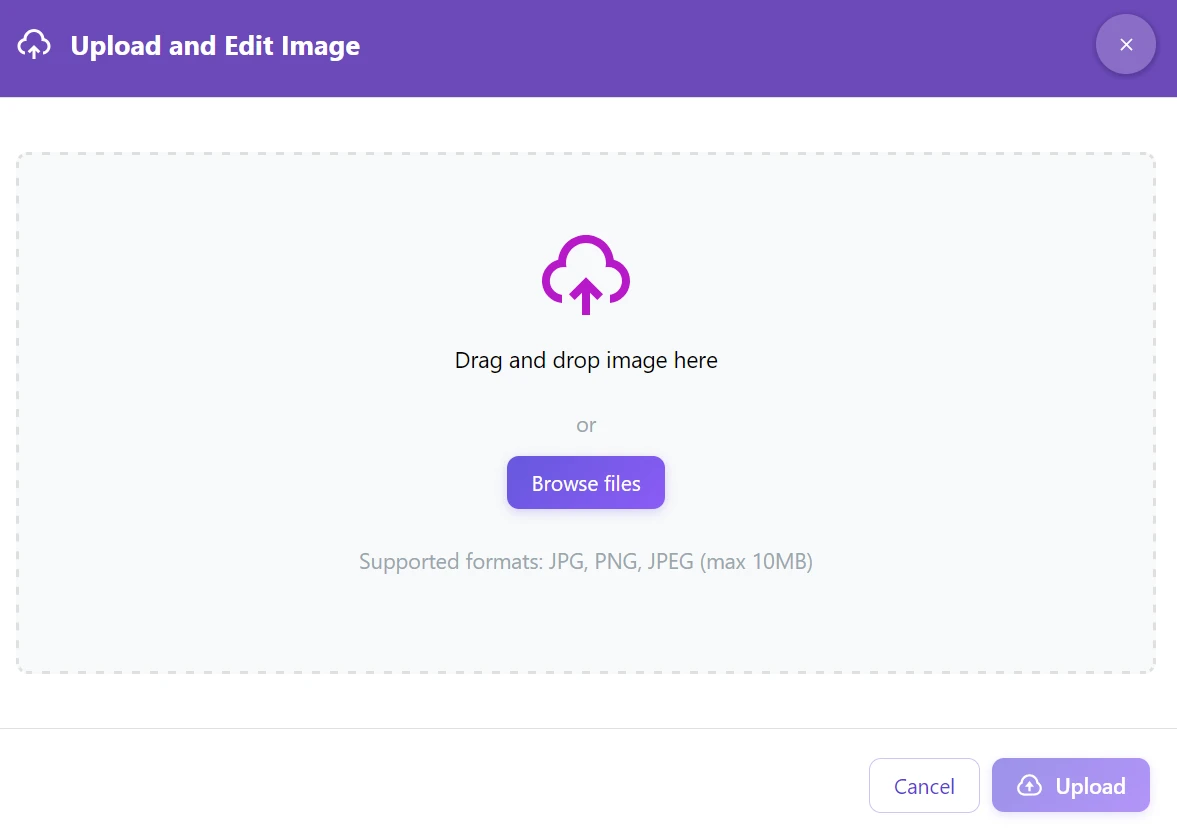
Step 1: Upload your base photo to GuideGlare AI image editor – this is the image you want to add elements from other photos to
Step 2: Click on “Edit with AI” → “Modify Image”
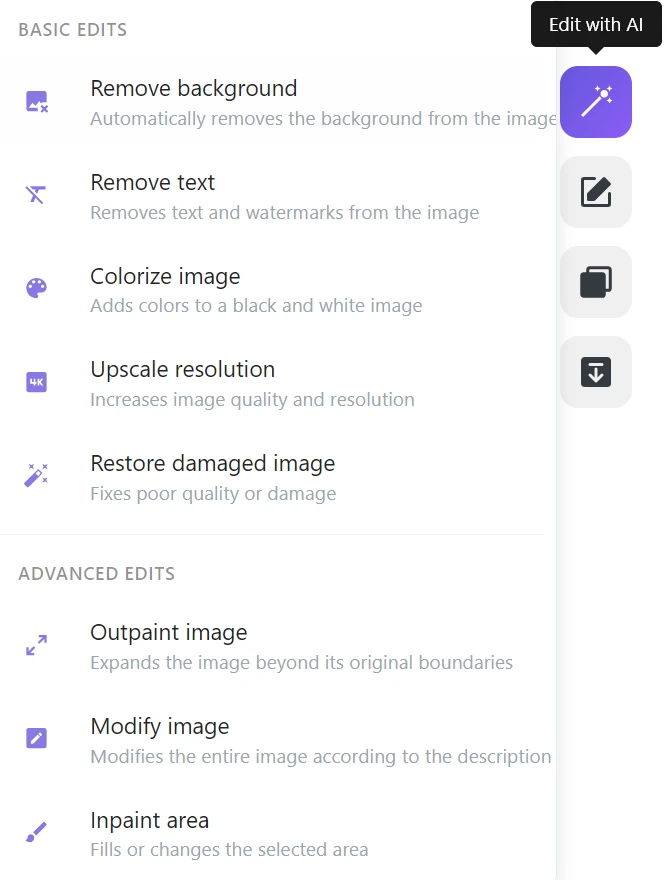
Step 3: In the Modify Image dialog, click on “Add images” and upload your reference photos (up to 3 images). Remember that the image you are editing is already taken into account by the AI.
Reference images are photos of people, products, or environments that you want to incorporate into the base photo.
Step 4: In the “Modification description” field, write how you want the images to be combined
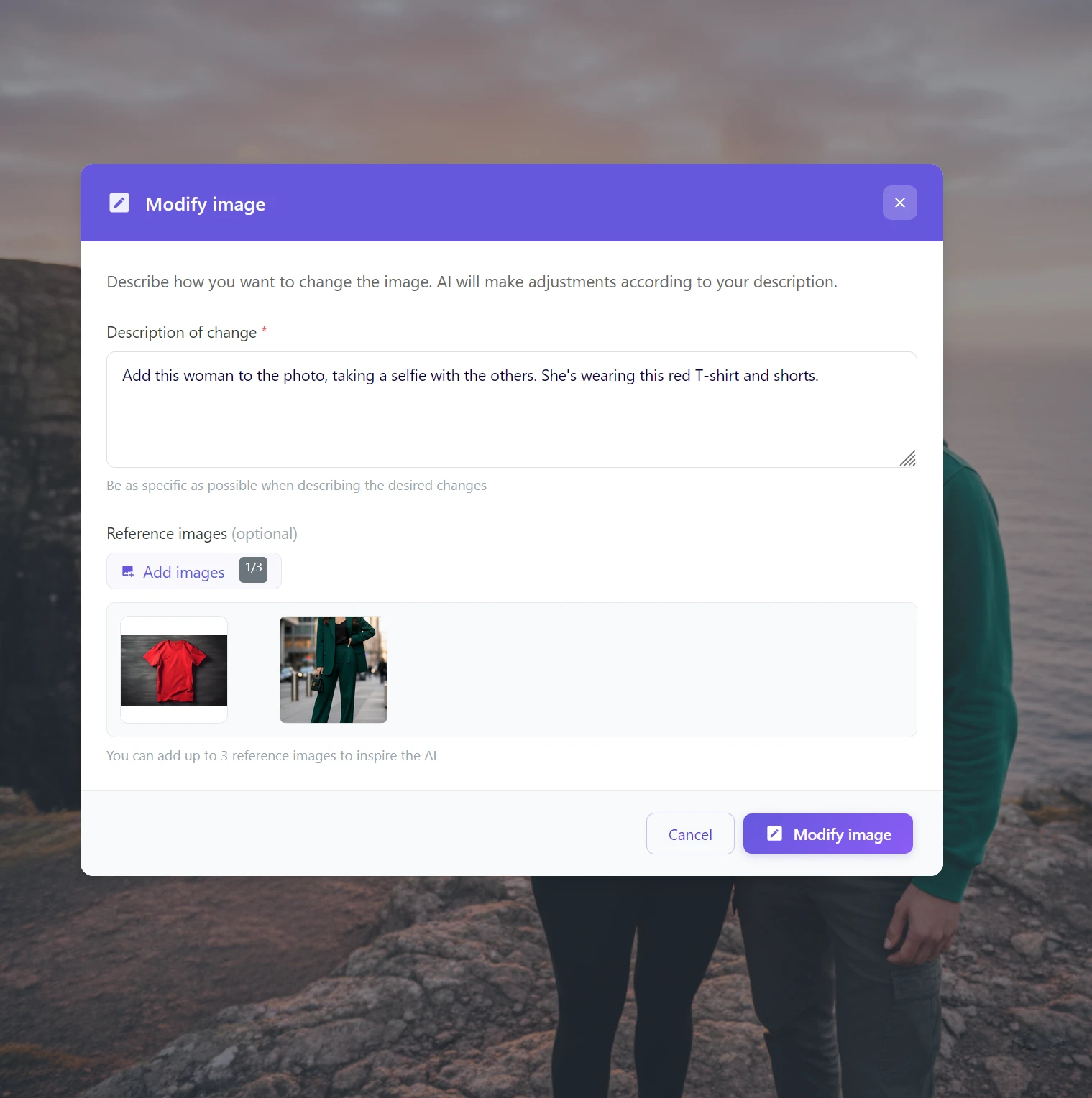
Step 5: Click on “Modify image” and wait 15–30 seconds
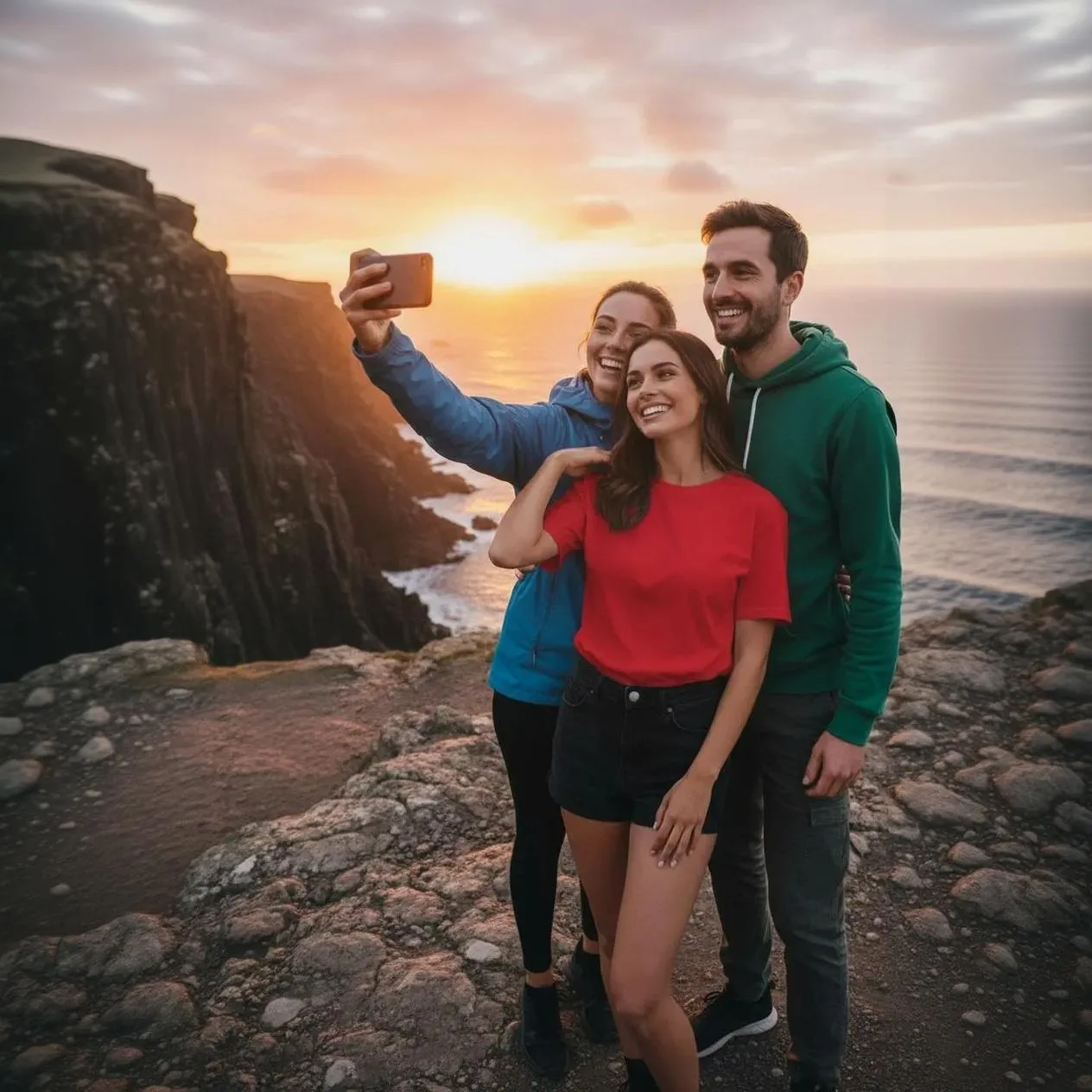
How to write a description for the best results
The description is crucial. The more specific, the more natural the result.
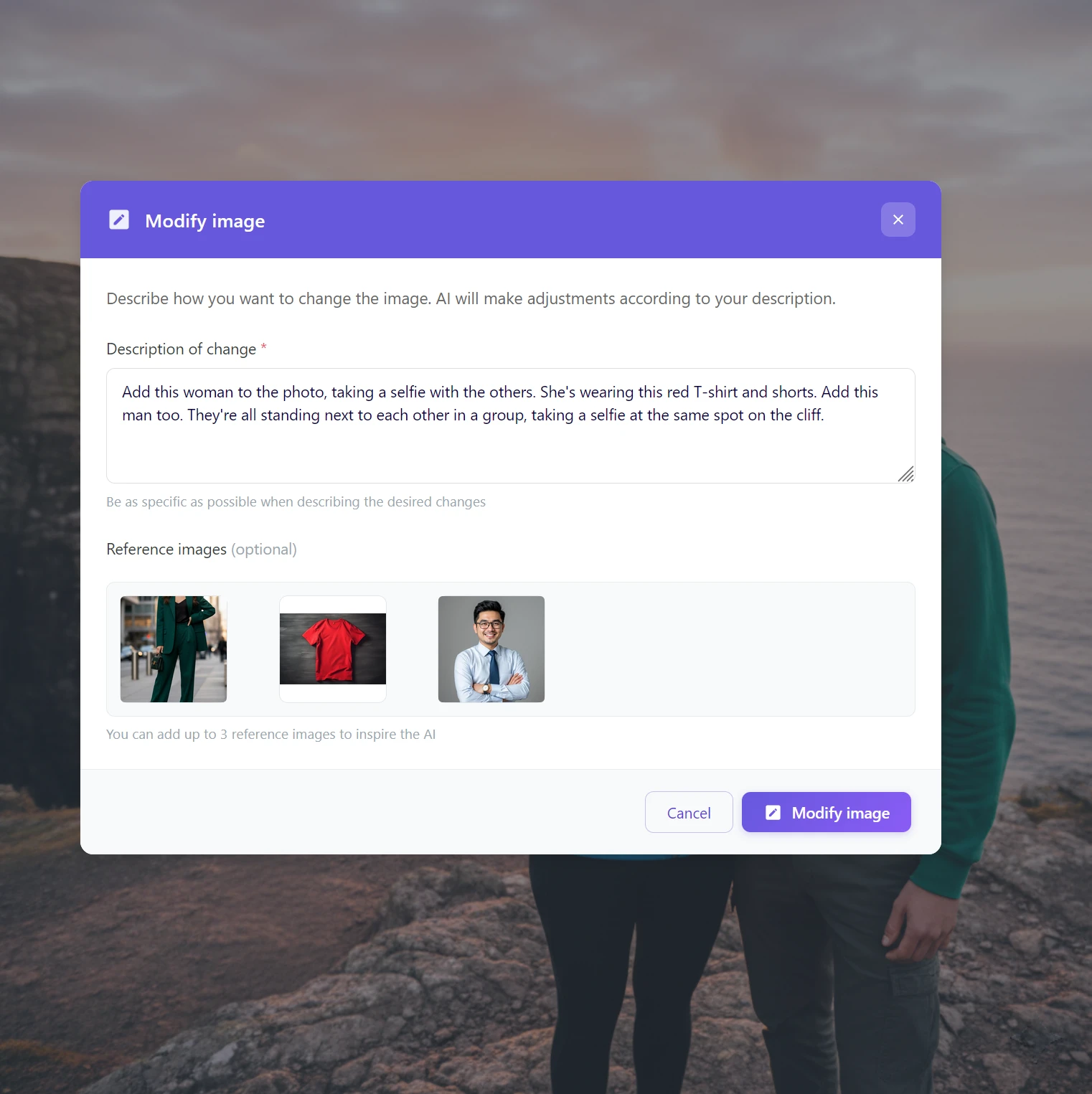
Tips for writing a description:
Describe what the reference images show:
- “Add this woman to the photo, she’s wearing the red t-shirt”
- “Add this woman to the photo in a red T-shirt and shorts”
Describe the relationship to other elements of the scene:
- “They’re all standing next to each other, taking a selfie at the same spot on the cliff”
- “They are standing next to each other, taking a group selfie in the same spot”
When adding multiple people at once, describe each separately:
- “Add this woman too. Add this man too. They’re all standing in a group.”
💡 Tip: If you want to merge a person with a specific environment (not just another photo of people), describe the room or scene in more detail – AI will understand where to place the figure.
Practical use cases
Check out a few examples of practical use for merging multiple photos with AI.
Adding a missing person to a group photo
A friend left before you could take a group photo. But you have their portrait from another occasion.
→ Upload the group photo as the base, the friend’s portrait as a reference, and describe: “Add this person to the group standing in the middle.”
Placing a person in an environment
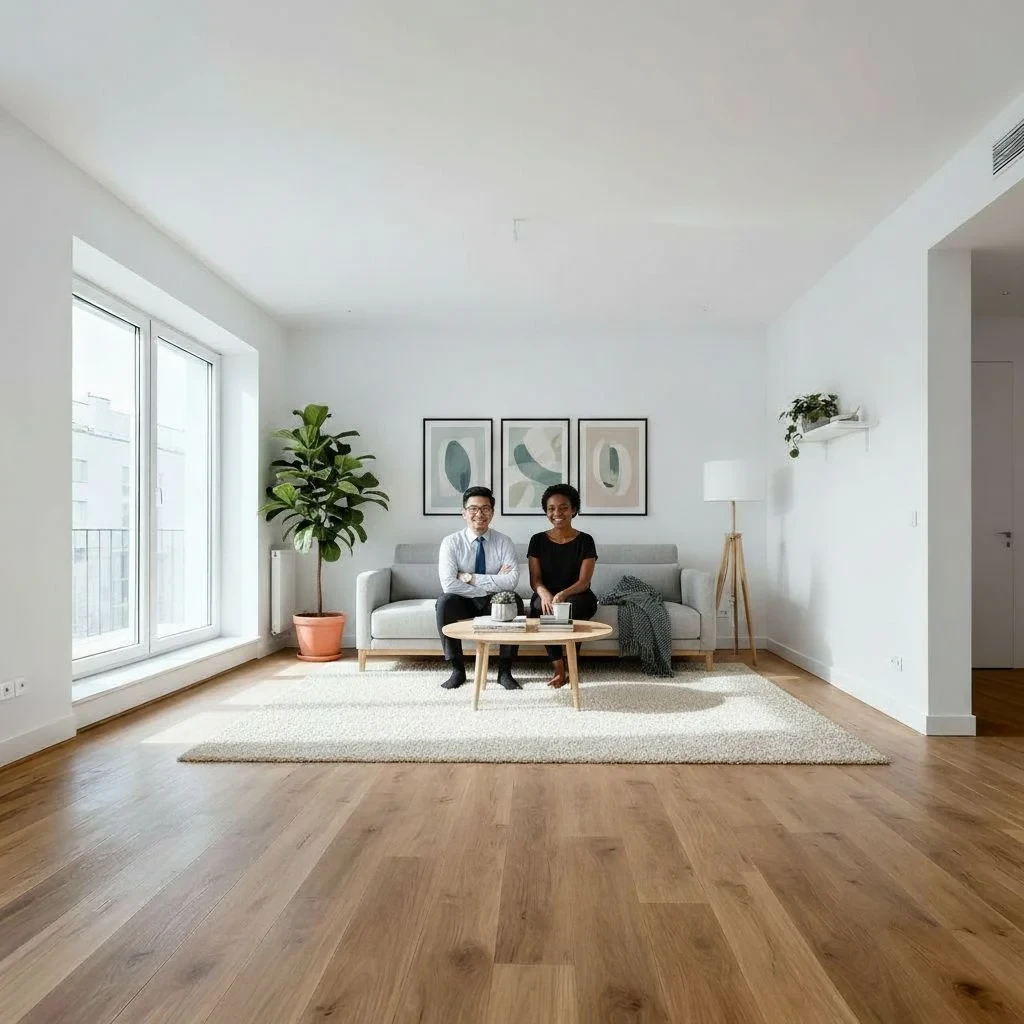
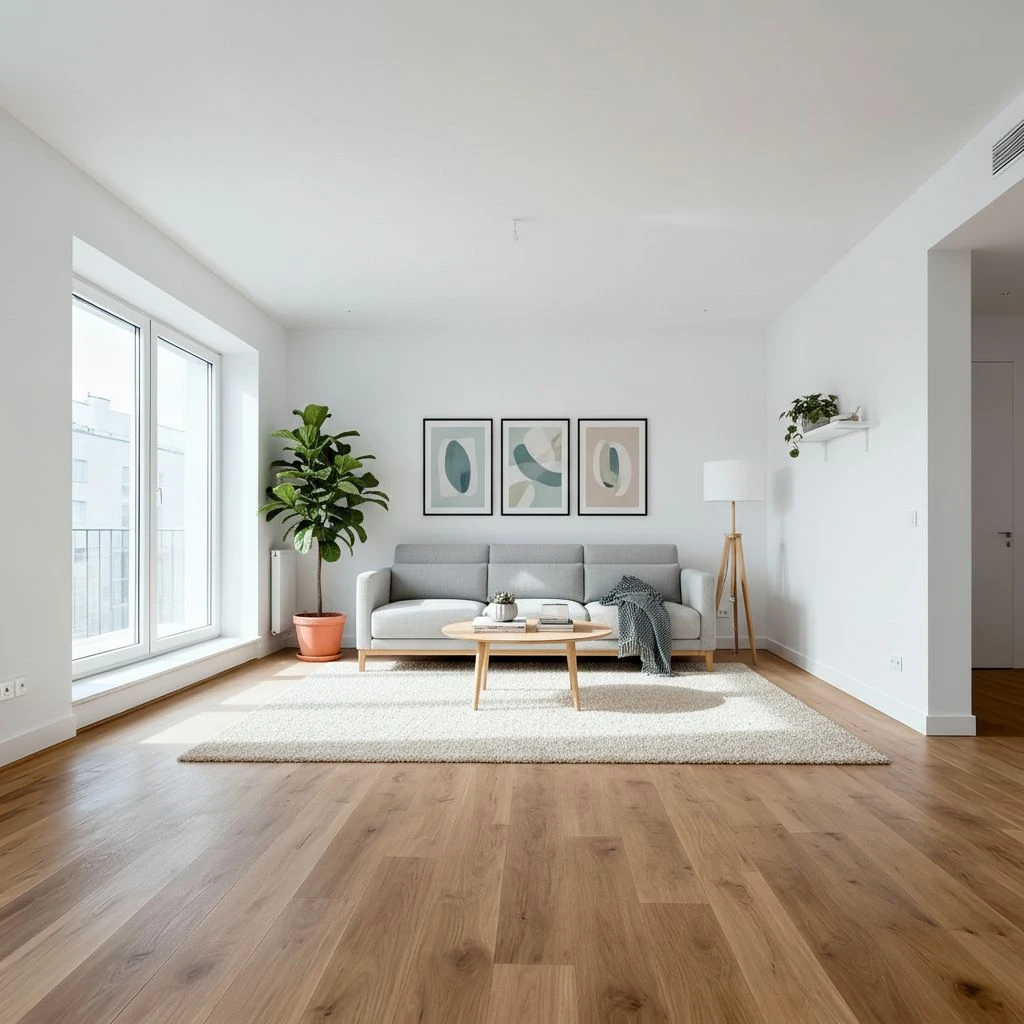
You have a portrait of a customer or model and a photo of an interior. You want to show what that person would look like in that space.
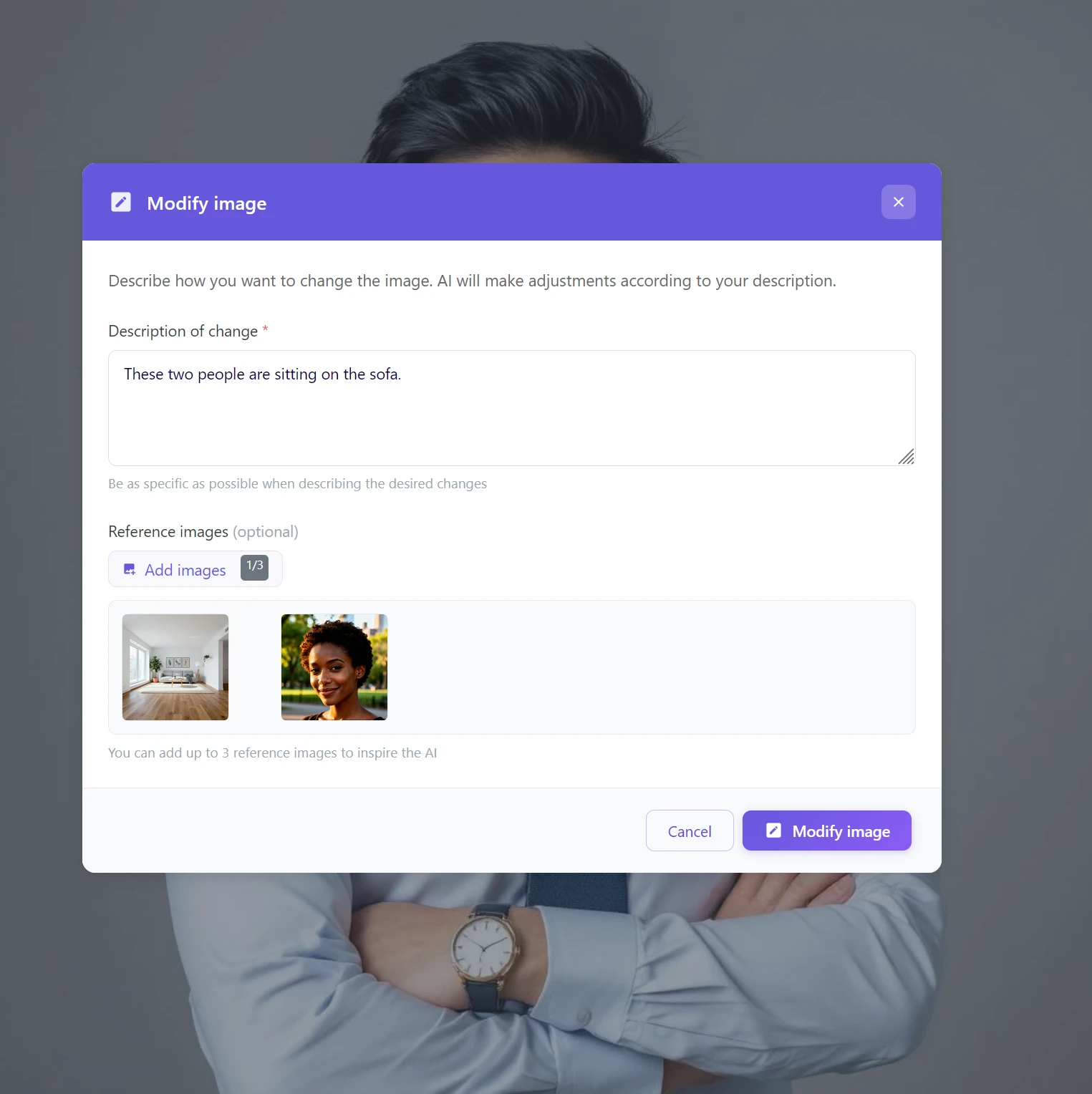
→ The base is a photo of the room, the reference is a portrait of the person, description: “This woman is sitting on the sofa in the room.”
Product photography on a model
You have a product photo of clothing, and the customer wants to see what it looks like on a specific person. You can create different variations of photos, it’s only limited by your imagination.
→ The base is a portrait or shot of the model, the reference is a product photo of the clothing, description: “This person is wearing this T-shirt.”
Creating marketing visuals
You need to place a specific person (colleague, client) into a scene for corporate materials or a campaign.
→ The reference is a corporate portrait, the base is the environment or campaign scene.
What to consider for the best results
Light and atmosphere should be similar. A photo in full sun and a portrait in a dark room will be harder for AI to naturally combine. The closer the conditions of the images, the more credible the result.
Describe the context, not just the action. Instead of “add person,” try “add this person standing on the left, consistent with the scene’s lighting.”
Choose expressive reference images. A full-body shot or a portrait with a clearly visible face works better than a blurry or distant photo.
If the result isn’t perfect, refine the description or try a different order of reference images. AI sometimes needs a second attempt with more complex combinations.
When AI photo merging is most appreciated
| Situation | Solution |
|---|---|
| Missing person in a group photo | Portrait as reference + position description |
| Model for product photo | Product shot + model’s portrait |
| Person in a new environment | Portrait + environment photo |
| Scene with two people from different photos | Base scene + portraits as reference |
Start combining photos with AI today
Merging multiple photos into one natural-looking scene was, until recently, the domain of professional graphic studios. Today, you can do it in the GuideGlare AI editor in minutes – without a graphic designer, without layers, without compromising quality.
Stop dreaming of perfect photos. Start creating them with AI.
With GuideGlare AI editor, you can handle advanced edits in seconds. Create professional compositions, add missing people, or place products in new environments – simply and efficiently.
Frequently asked questions
Is photo merging free?
No, to use GuideGlare’s AI tools, you need at least a Basic plan. This unlocks access to all advanced AI features, including photo merging.
How many reference images can I add?
You can add up to 3 reference images to a single edit. When adding multiple people or elements at once, we recommend describing each in the instructions so that the AI understands what to do with each image.
Do the photos need to have the same lighting conditions?
No, AI is capable of adjusting lighting and shadows to make the result look natural. However, the more similar the lighting conditions and overall atmosphere of the source images, the more natural and credible the final composition will be.
Does merging also work for backgrounds or environments, not just people or objects?
Yes, the GuideGlare AI editor is very flexible. Any image can be used as a reference – a person’s portrait, a product photo, an environment photo, a texture, or even just an abstract image. AI will incorporate it into the base scene according to your detailed description.
What if the result doesn’t look natural or exactly as I imagined?
If the first result isn’t perfect, don’t despair. Try to refine the description, add more details about the position, lighting, or interaction of elements. You can also change the order of reference images or try other reference photos with more similar lighting or style. AI can be run repeatedly, and with each iteration and refinement, the results can significantly improve.
How long does the processing take?
Processing typically takes 15–30 seconds. When combining multiple reference images or with very complex requests, processing may be slightly longer but rarely exceeds a minute.
Can I specify the exact position where the reference element should be placed?
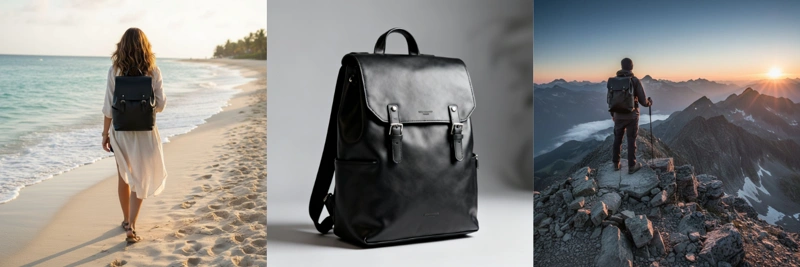
Yes, you can influence the exact position using a detailed text description. For example: “Add this person standing on the left in the middle of the scene, with hands in pockets,” or “Place the backpack on the back of the character in the blue T-shirt.” The more specific the instructions, the better the AI will understand your intent.
What is the quality of the resulting photo? Is the resolution of the original photo maintained?
The resulting photo usually maintains high quality and resolution close to the original image. AI strives to generate an image that is sharp and detailed, suitable for printing or online use without problems. The exact resolution may vary slightly depending on the input data and the complexity of the edit.
What if the AI tries to add something to the photo that I didn’t want?
AI may sometimes interpret the description or reference images in a way that unintentionally adds unwanted elements. In such a case, try to adjust your description to be more explicit about what you want and don’t want. For example, add “make sure there are no other objects” or “keep the background clean.” You can also try generating again with a slightly different description.