

Change Photo Atmosphere: Weather & Time of Day with AI
What if you could re-shoot the past?
You know this photo. A perfect shot of a house, landscape, or place – but the sky is gray, the light is flat, and the overall impression is cold. The photo simply doesn’t tell the story you want to tell.
Reshoot it in the right light? Go back there at a different time of year? Most of the time, that’s not possible.


But what if you didn’t have to?
Bad light won’t sell a house, evoke desire, or capture attention
The atmosphere in a photo isn’t a detail – it’s the first thing the brain processes before a person reads a single word. A gray sky says “autumn, cold, average”. Golden hour says “now or never”.
The problem is that the right light and the right weather cannot be planned. You arrive at the location – and the sky isn’t cooperating. Or you’re shooting in winter, but you need a summer version. Or you simply don’t have time to wait for ideal conditions, and the deadline is pressing.
Ordinary filters won’t help in this situation. Recolorizing the sky without adjusting reflections on the facade or water will reveal the result at first glance. And a result that looks fake is worse than no edit at all.
How AI changes a photo’s atmosphere – and why it doesn’t look like a filter
GuideGlare AI Image Editor approaches atmosphere changes differently than cheap mobile apps. It doesn’t apply layer over layer – it analyzes the entire image as a physical scene.
Where shadows fall. How surfaces are lit. What reflections are present on surfaces. And based on that, it recalculates the entire photograph for new lighting conditions.
That’s why the winter version of a house has snow not only on the ground but also on the roof, tree branches, and window sills. That’s why the golden hour will reflect in the windows and on the facade. That’s why a night scene has soft lunar light, not just a dark background.
The results aren’t filters. They are recalculated versions of the entire photo.
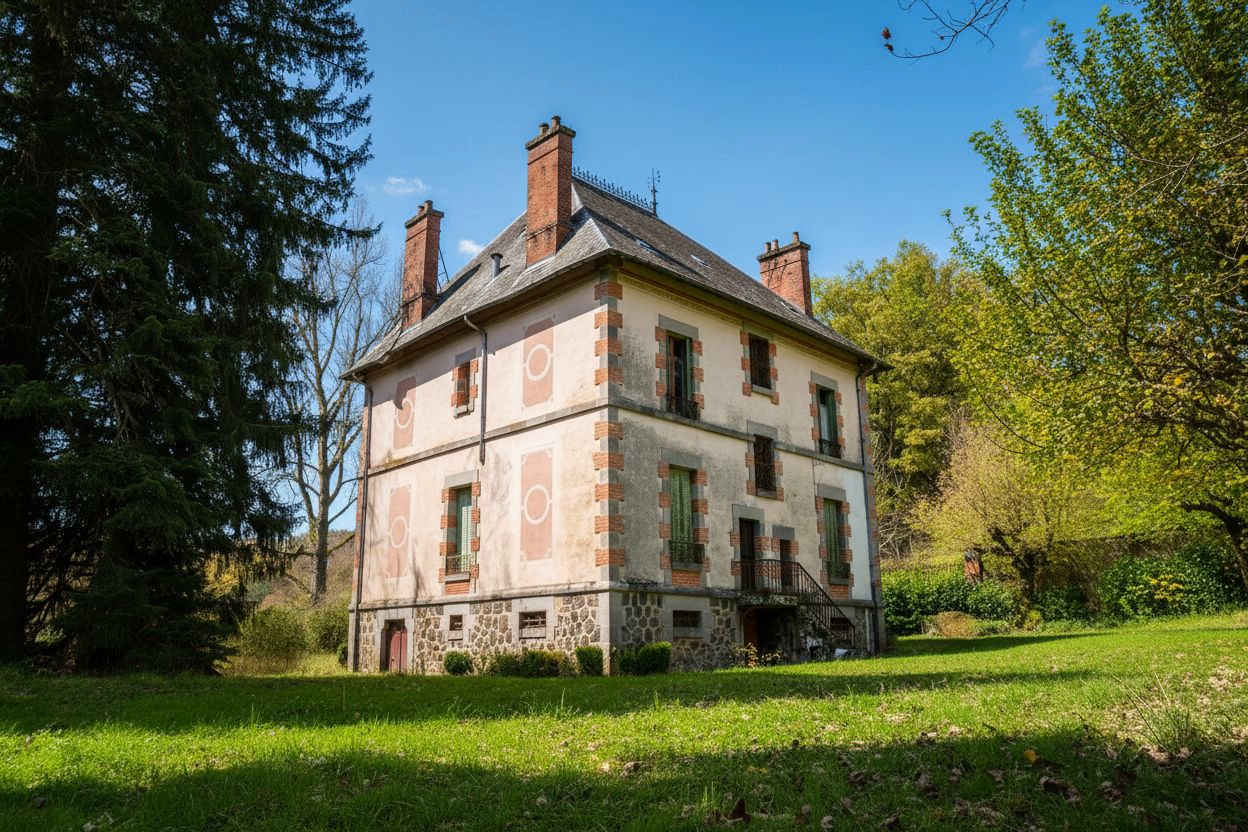
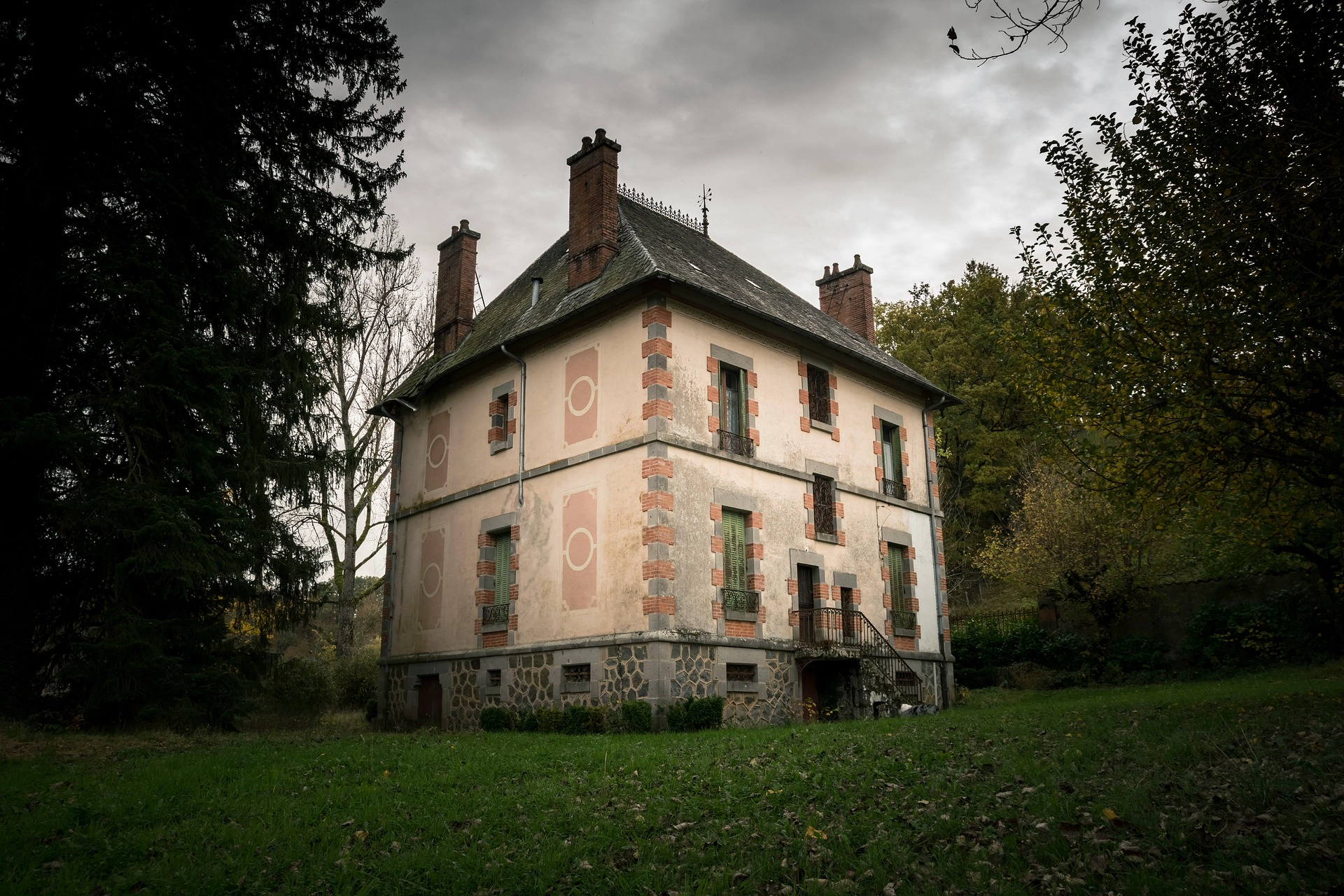
What exactly does AI change?
When changing the atmosphere, it’s not just about recoloring the sky. AI works with the entire photograph at once:
- Sky and clouds – sunny, cloudy, golden hour, starry night, dawn
- Scene lighting – the warm light of the setting sun will reflect on the facade, grass, or water
- Shadows and contrast – change according to the angle and intensity of the “new” sun
- Seasonal transformations – summer greenery transitions into snow cover, including all details
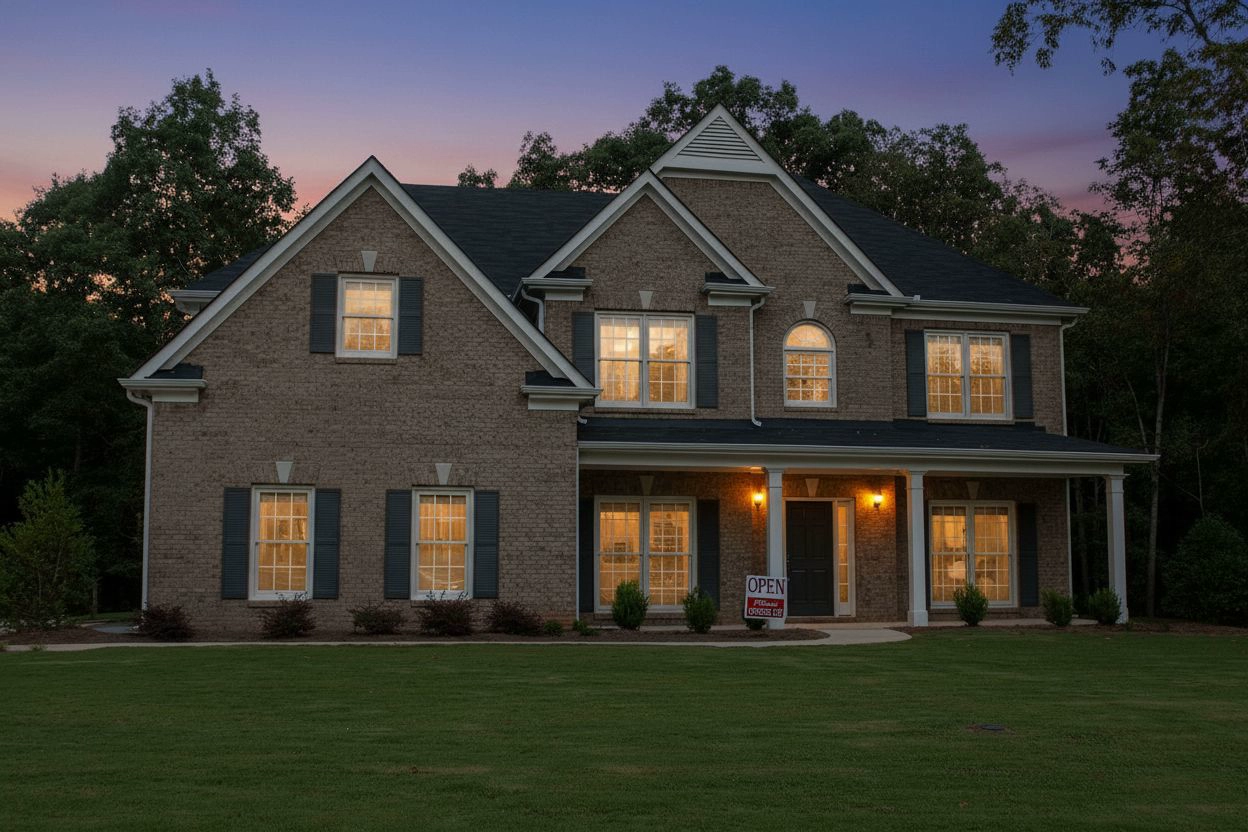
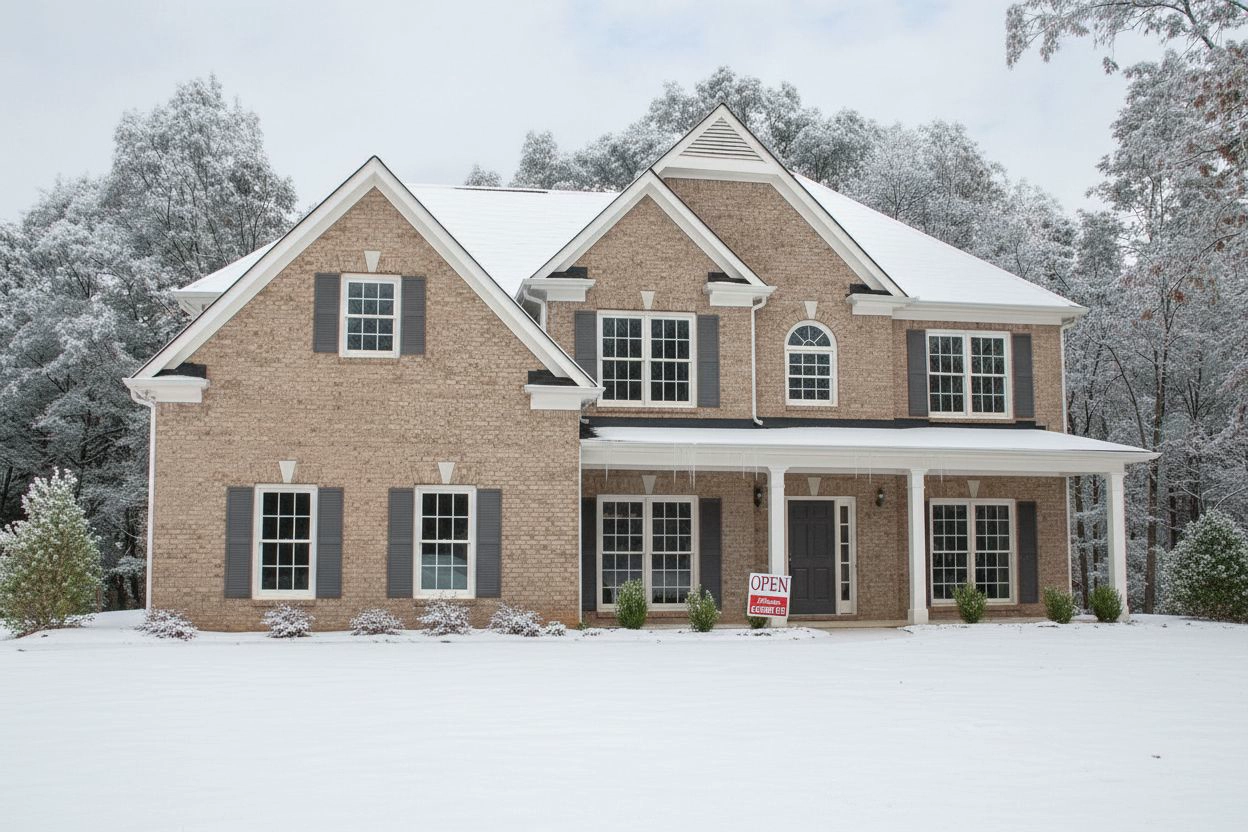
Where changing the atmosphere changes more than just a photo
Real estate photography and property presentations
Did you photograph a property in winter but want to show what it looks like in summer? Or do you need a spring version of a house you photographed in November in the rain? AI will create both versions from a single photo.
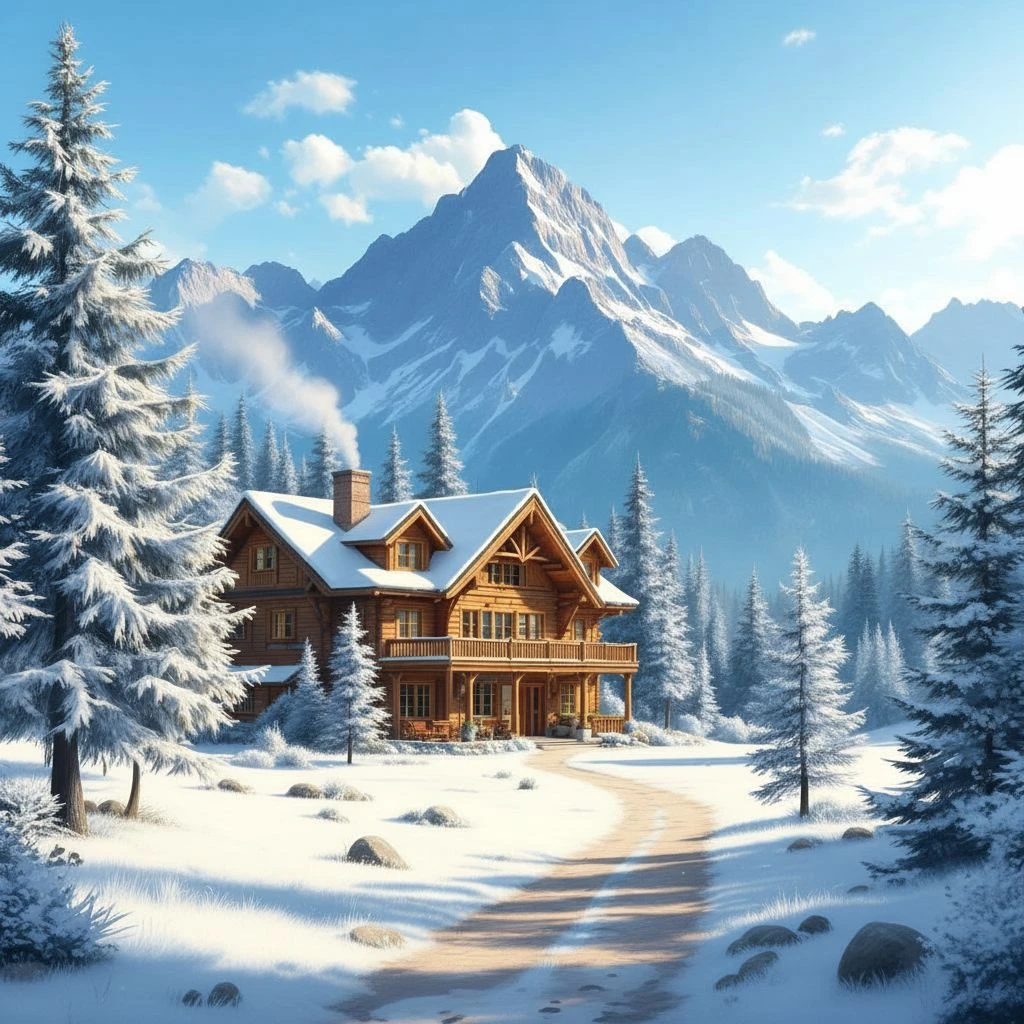
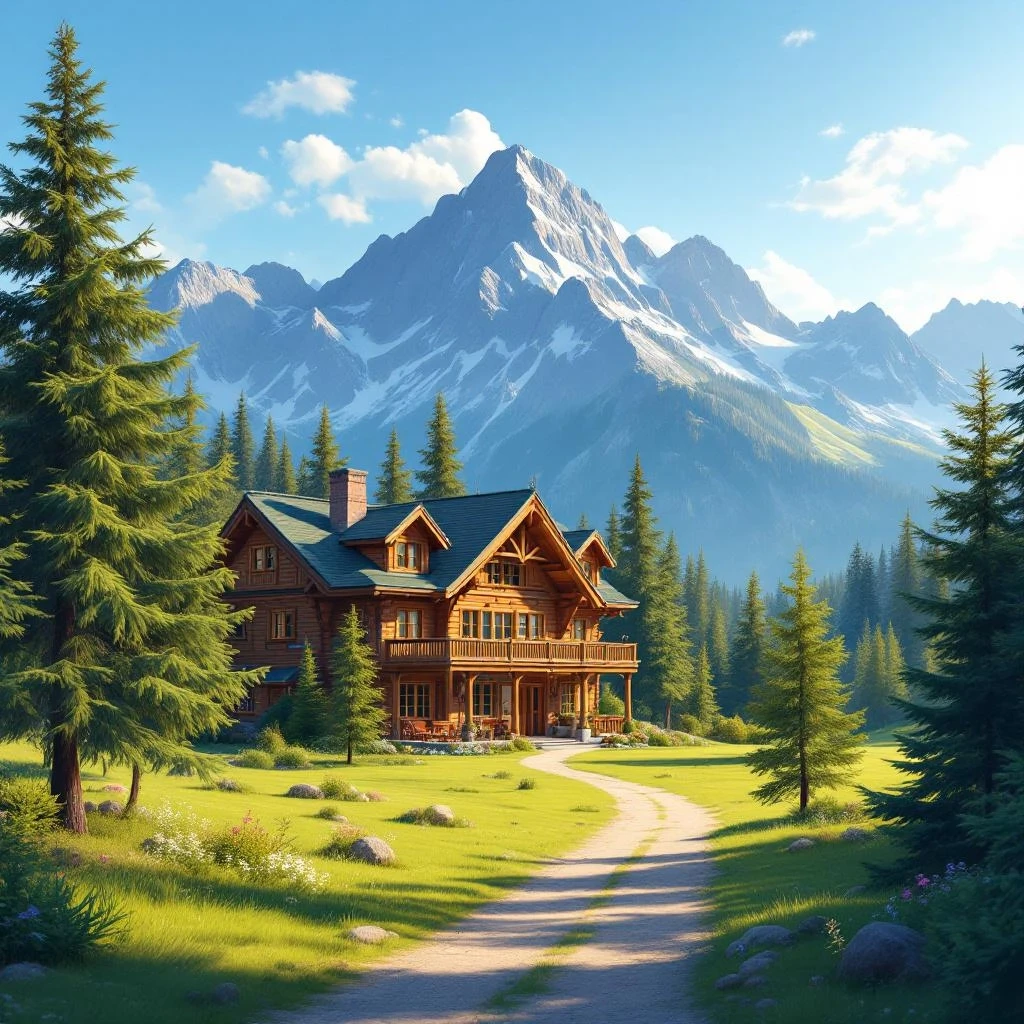
Selling property year-round – why have only one season?
Tip for real estate agents: two photos for the price of one photoshoot
For your next property photoshoot, take one high-quality shot in any weather. Then create a sunny day version, a golden hour version, and a winter postcard using AI. You'll show clients the property in the best light, regardless of when you photographed it – and save on repeated on-site photoshoots.
Creative photography and art projects
Sunflowers on a clear day are nice. Sunflowers under a starry sky with a full moon are unforgettable.
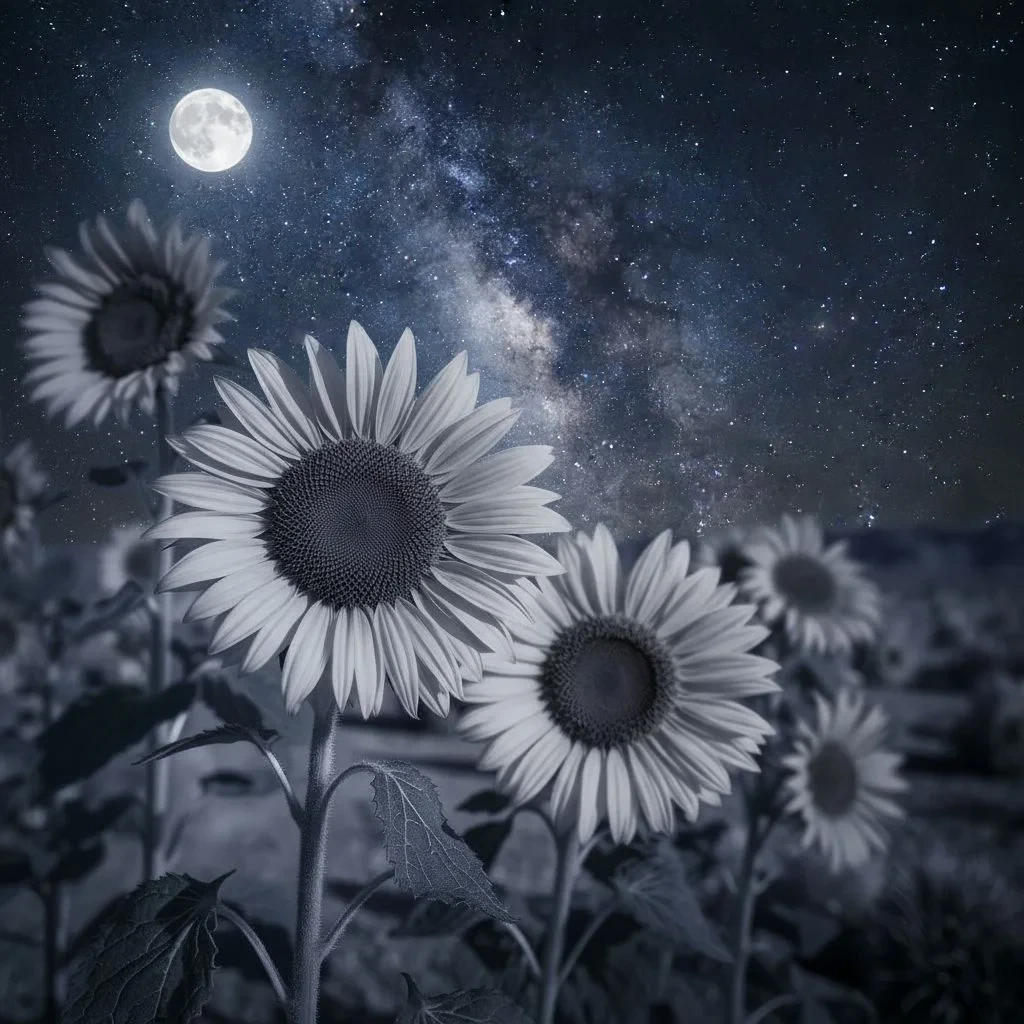
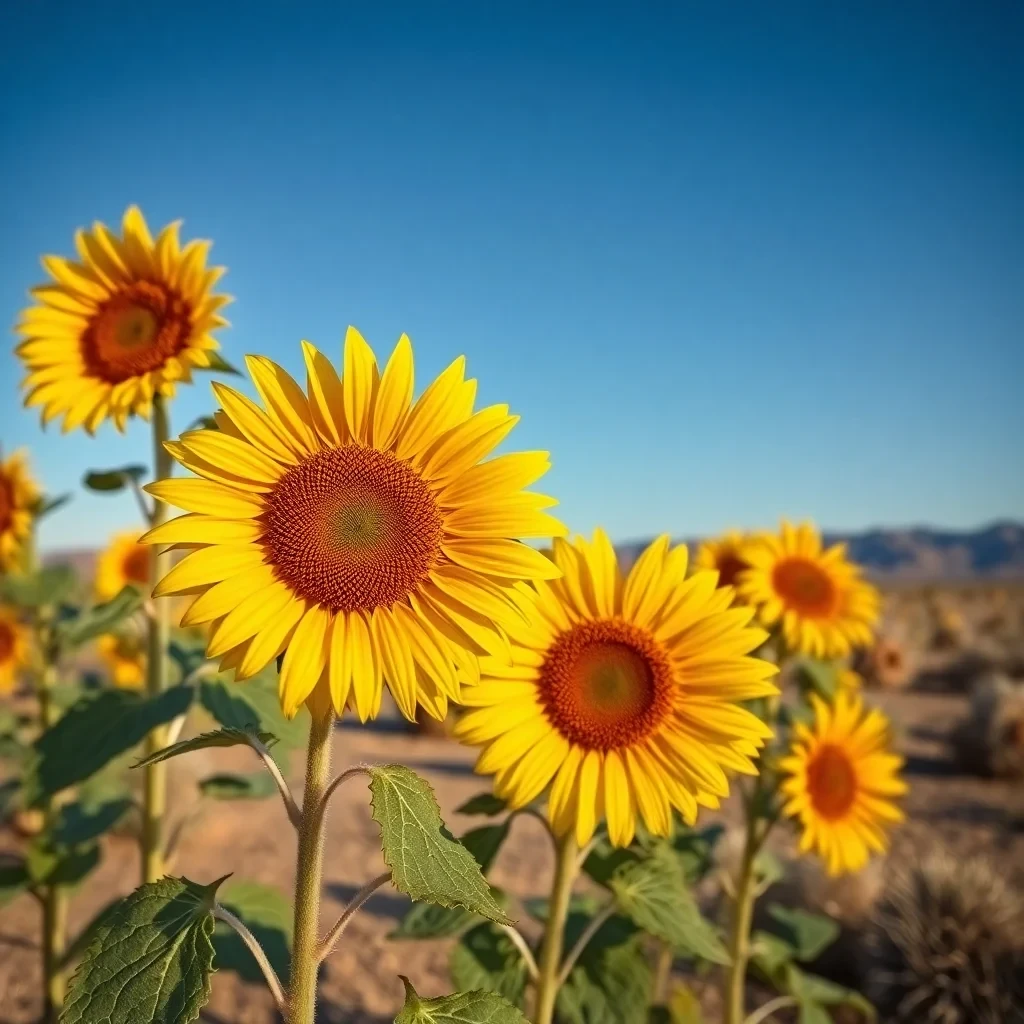
Create a series from a single shot
A strong photographic series doesn't have to mean hours spent on location in different seasons. One shot, four different atmospheres – spring, summer, autumn, winter – and you have a coherent visual series for an exhibition, portfolio, or social media. The moods naturally differ, while the shot and composition remain consistent.
Marketing and visual communication
Seasonal campaigns, different versions of materials for different markets, or simply wanting to show the same place in different moods – without the need to revisit the location. For preparing the same photo in multiple formats for different platforms, use AI Outpainting.
How to change weather or time of day in a photo step-by-step
Step 1: Upload your photo to GuideGlare AI Editor
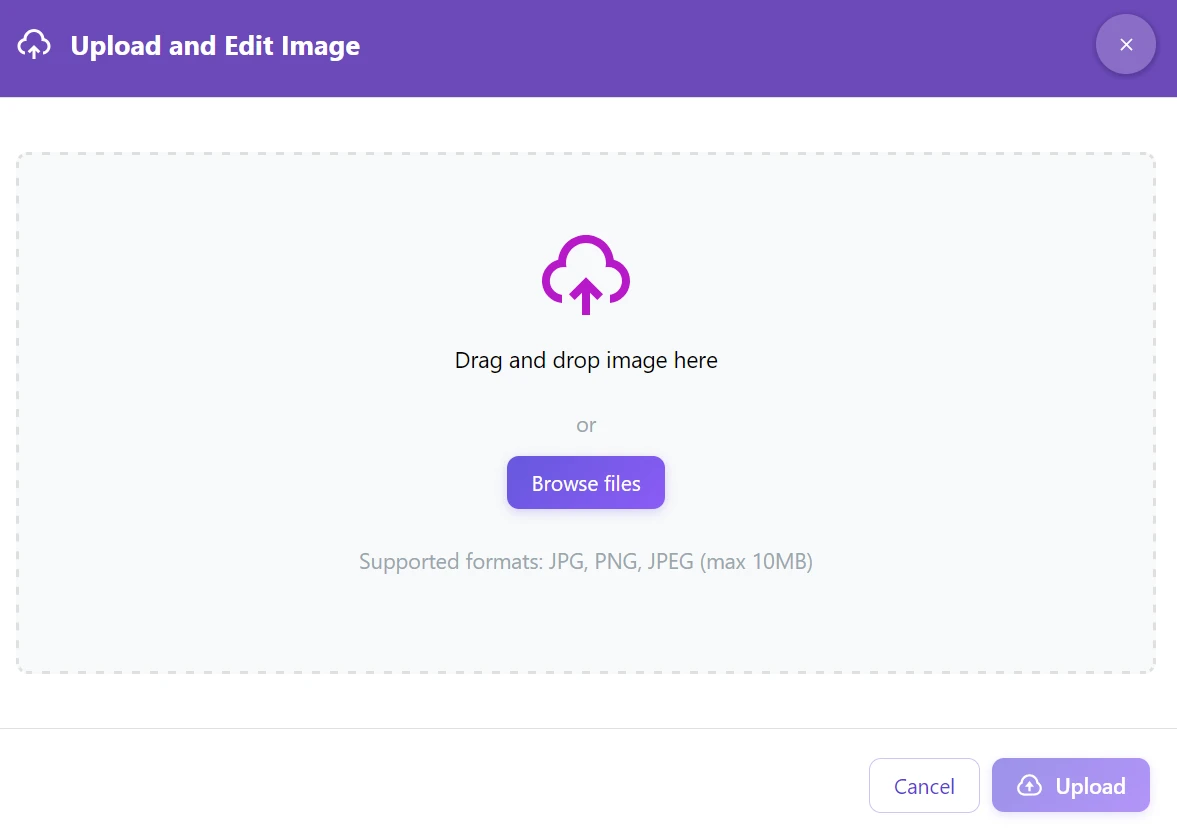
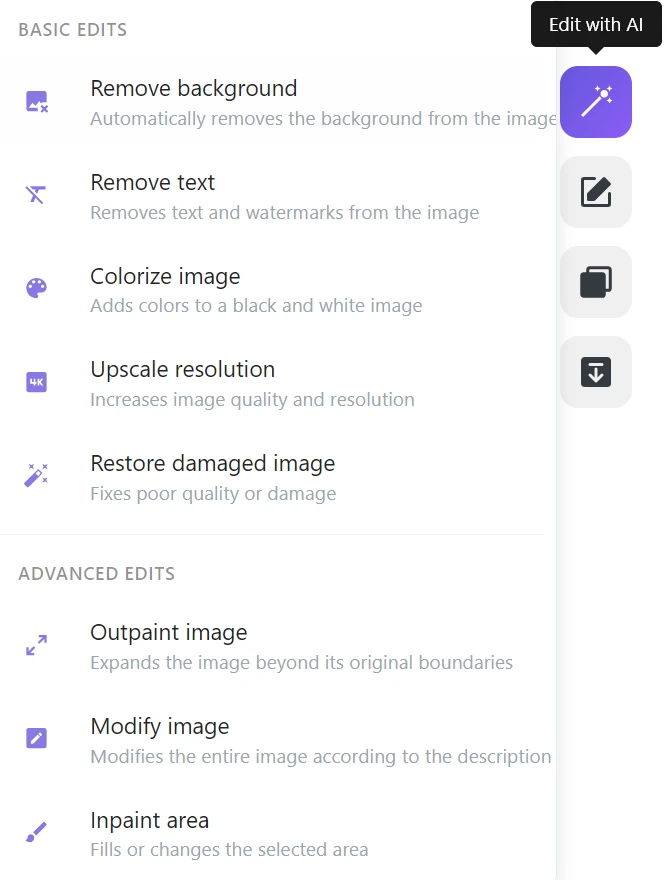
Step 2: In the right menu, click on “Edit with AI” → “Modify Image”
Step 3: In the “Change description” field, naturally write what you want to change
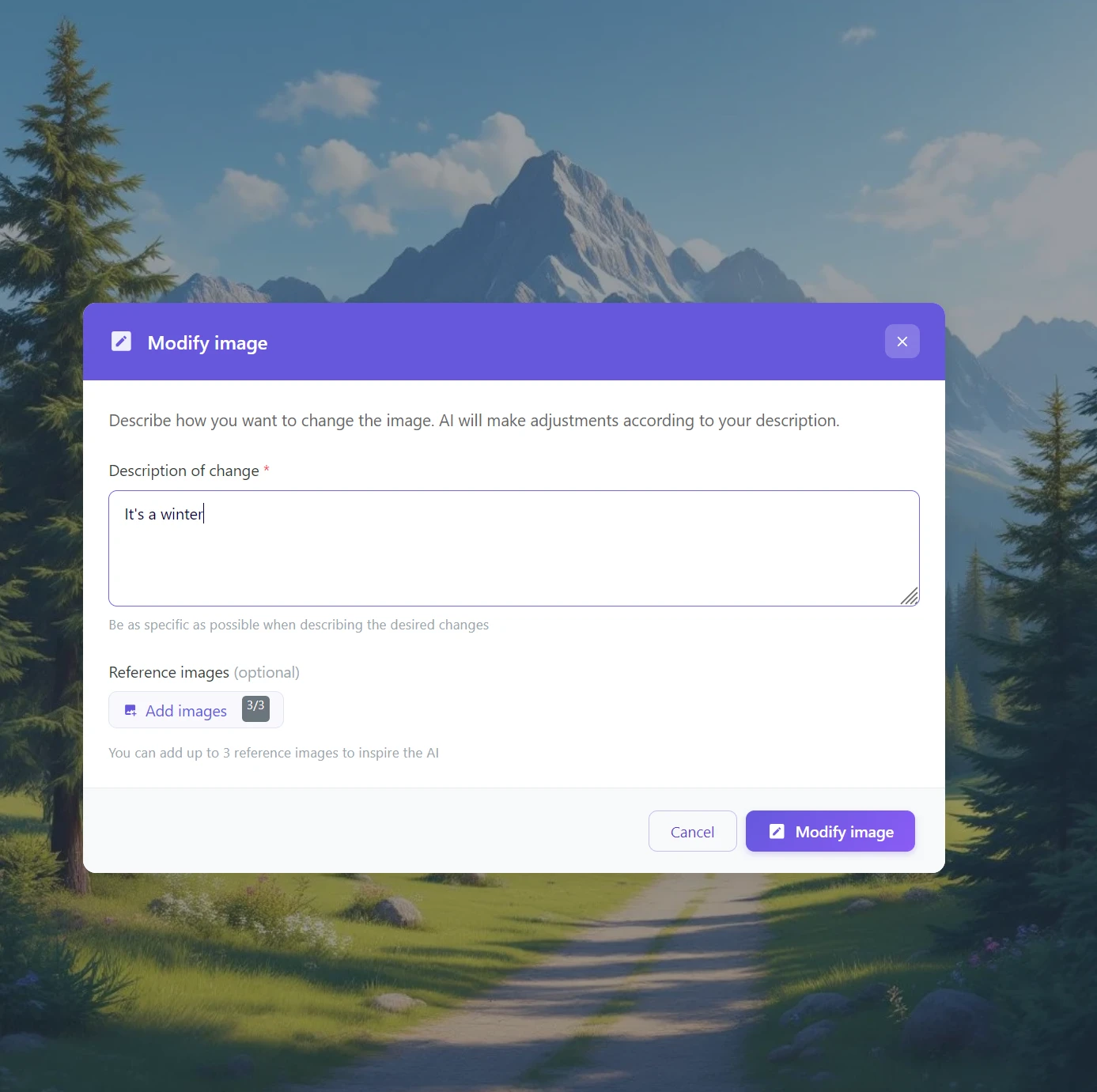
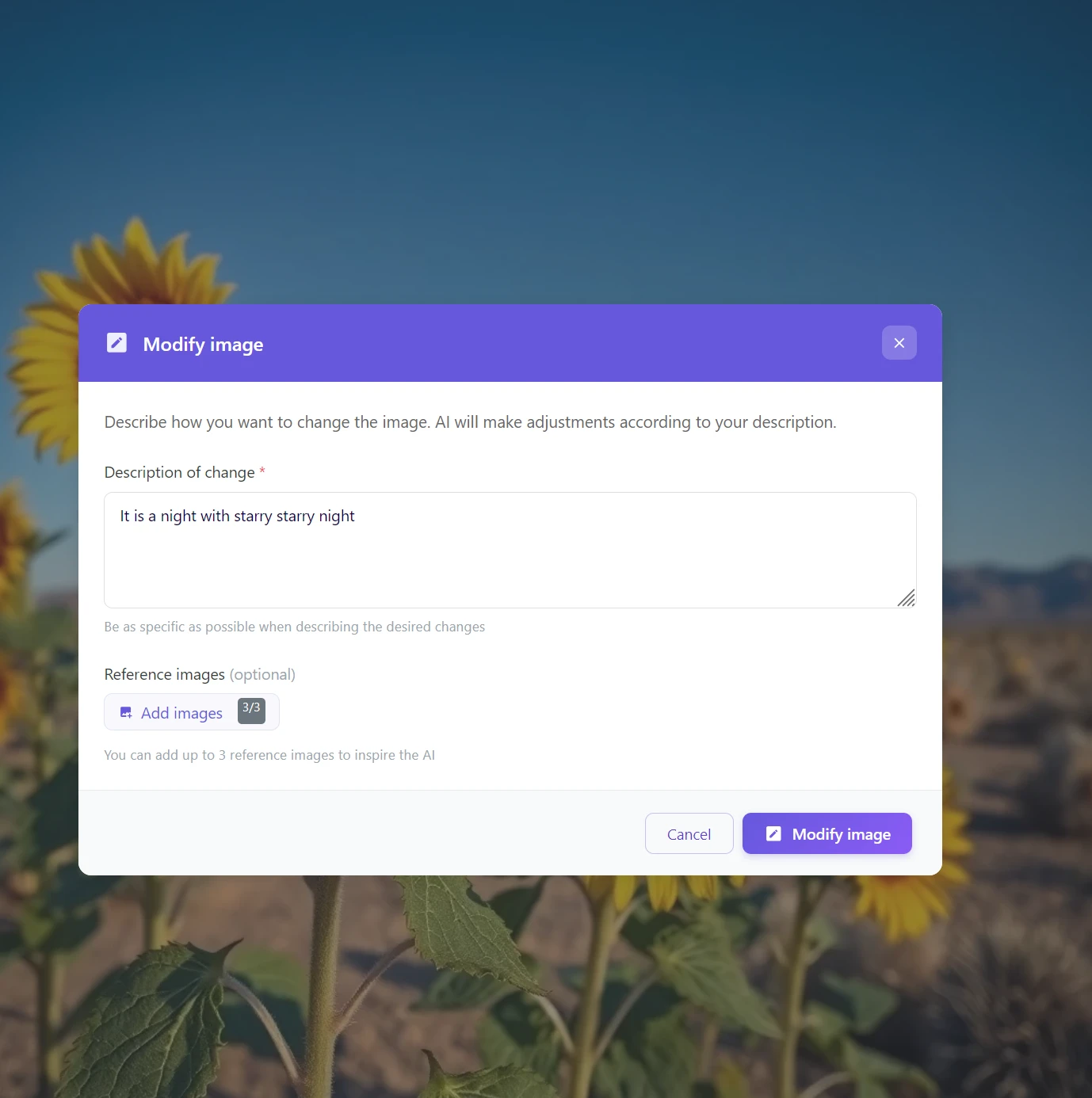
Examples of descriptions that work:
- “Change day to sunset”
- “Add snow and winter atmosphere”
- “Night scene with starry sky and full moon”
- “Change cloudy sky to a bright sunny day”
- “Change summer to autumn with colorful leaves”
Step 4: Click “Modify Image” and wait 10–30 seconds
Specific description = better result
Instead of a vague “different sky,” try “golden sunset with orange clouds reflecting in the water.” The more details AI receives, the more accurately it can recalculate the lighting of the entire scene. As an optional aid, you can add up to 3 reference images – examples of the atmosphere or mood you want to achieve. AI will draw inspiration from them when generating the result. And don't worry about writing in Czech or Slovak – AI understands your language just as well as English.
Start changing the atmosphere of your photos today
A photograph captures a moment. AI can rewrite it.
One shot, endless variations. A different mood, a different season, a different time of day – all from a single image, in a few seconds, without a graphic designer and without the need to reshoot.
One shot, endless moods.
Change summer to winter, day to night, a rainy morning to golden hour – naturally, with a single sentence. Without manual edits, without layers, without compromises.
Frequently Asked Questions
Is changing a photo’s atmosphere free?
To use GuideGlare AI tools, including atmosphere change, at least a Basic plan is required. The reason is that AI genuinely recalculates the entire physics of the image’s lighting – it’s not a simple filter, but a computationally intensive operation with advanced models. See our pricing for more information.
What types of photos does this work best on?
AI yields the best results on exterior photos, landscapes, buildings, and nature – wherever the sky and natural light play a significant role. For interiors or very complex scenes, the result might be less convincing, as AI has less room to change lighting conditions.
Can I combine multiple changes at once?
Yes. You can enter multiple changes at once in the description – for example, “winter landscape with snow, twilight, and lit windows.” AI will attempt to combine all conditions. For complex instructions, it pays to be specific: the more precise the description, the more coherent the result.
How specific do I need to be in the change description?
Even a general instruction like “sunset” or “winter day” is enough – AI will deduce the rest from the photo’s context. However, the more specific description you provide, the more precisely AI will adjust the light, shadows, and colors. For the best results, try to describe not only the desired atmosphere but also the key elements you want to emphasize.
Is the original photo quality preserved?
Yes, GuideGlare works at the original file resolution. If you want to maximize sharpness after editing – for example, for printing or large-format display – we recommend further processing the result with the Upscale Resolution feature.
How long does processing take?
Usually 10–30 seconds, depending on the file size and the complexity of the desired change. Even for demanding transformations like transitioning from summer to winter or day to night, the wait will not significantly exceed this time.
What if the result doesn’t look realistic?
Try to refine the description – for example, add the type of light (“soft diffuse light of a cloudy day”) or mention specific scene elements (“snow on the roof and tree branches”). If the problem is only in a part of the photo, use the “Modify Image” tool and retouch only that specific spot. Combining both approaches yields the best results.